Managing E2E encryption with Matrix in a simple way
Introduction
In this article, we will explore the challenges of managing encryption keys in the special context of WorkAdventure, which is a platform to build 2D virtual universes that features a Matrix client to exchange messages between users.
One of the key strengths of Matrix is its support for end-to-end encryption (E2E). This feature allows users to exchange messages securely, knowing that only the sender and the recipient can read the messages. However, providing E2E encryption to users comes with its own set of challenges, especially when it comes to securing the recovery key / passphrase.
It is hard to make users understand the importance of the passphrase and to make them remember it. In September 2024, I attended the Matrix Conf 2024 in Berlin, and I was struck by the fact that this is a recurring issue for all Matrix clients. The community is actively working on improving the user experience around encryption through various initiatives like the “Invisible Crypto” plan.
In this article, we will explore how we can improve the management of encryption keys in the context of WorkAdventure.
We will discuss the challenges we face and propose some solutions to make the process more user-friendly, including using video game techniques to explain encryption to the end user.
Finally, we will discuss how we can adapt our approach to be compatible with the upcoming “Invisible Crypto” plan.
How does Matrix encryption work?
Matrix is a decentralized communication protocol that allows for secure communication between users.
It is designed to be end-to-end encrypted, meaning that only the sender and the recipient can read the messages.
This is achieved by encrypting the messages on the sender’s device and decrypting them on the recipient’s device.
This means encryption and decryption are done by encryption keys that are stored on the devices of the sender and the recipient. Those keys should never be stored on the server.
Matrix relies on the Olm and Megolm cryptographic ratchets to provide end-to-end encryption. It means that the encryption keys are updated regularly to ensure that even if an attacker manages to get hold of an encryption key, they can only decrypt a small number of messages. This also means that in order to decrypt all your messages history, you don’t need only one encryption key but all the keys that were used to encrypt the messages.
The number of keys can grow quickly, and with this number, the complexity of managing them. Remember that the keys live only on the client side? If you want to connect to your account from another device, you need to transfer the keys to the new device. Now, imagine having several megabytes of keys to transfer. This is not practical.
To solve this problem, Matrix uses a key sharing mechanism called SSSS (Secure Secret Storage and Sharing). This mechanism allows you to share the keys between your devices in a secure way. The keys are encrypted with a master key, itself recoverable through a passphrase that you choose. The encrypted keys are then sent to the Matrix server, which acts as a storage. Because the keys are encrypted, the server cannot use them and if the server is compromised, the attacker cannot decrypt the keys (because he doesn’t have the master key or the passphrase).
If you followed me so far, you understand that the passphrase is the key to all your keys. If you lose it, you lose all your keys, so all your messages’ history. This is why it is important to keep it safe.
Let’s have a look at the particularities of this passphrase:
- It is used to access your messages history.
- It cannot be changed easily.
- If you lose it, you lose all your messages’ history.
- It is not a login password. Unless you are using a passwordless SSO mechanism, you also need a login password to
access your account.
Those peculiarities make the passphrase uncommon. Users are not used to having a passphrase to remember. They have a hard time understanding the importance of this passphrase and the consequences of losing it. The passphrase is not asked often (once per session, but Matrix clients can keep the session open for a long time), so users tend to forget it.
Differences between WorkAdventure and other Matrix clients
In the context of WorkAdventure, we have an additional constraint: the Matrix messaging system is not central to the WorkAdventure experience. The core of WorkAdventure is moving around in a map, interacting with other users using video/audio chat. While extremely useful, the Matrix messaging system is an additional feature that is not used by all users. When a user enters WorkAdventure for the first time, we don’t want to ask them to create a passphrase.
The first connection phase should be as frictionless as possible.
Why? A first-time user on WorkAdventure wants to discover the platform. If we bother them with a passphrase creation popup, they will probably click on “next” as fast as possible to get to the map. They will not understand the importance of the passphrase, and they will forget it.
This is different from other Matrix clients like Element. When you set up Element, you install an app dedicated to exchanging messages. Having those messages protected is a highly desirable feature. Therefore, users are more likely to understand the importance of the passphrase.
| WorkAdventure | Other Matrix clients |
|---|---|
| Messaging is an additional feature | Messaging is the core feature |
| Encryption is a nice-to-have feature | Encryption is a must-have feature |
| First connection must be frictionless | First connection can be more complex |
How do other Matrix clients handle the management of encryption keys?
In September 2024, I went to attend the Matrix Conf 2024 in Berlin. This conference was a great opportunity to meet the Matrix community. While participating in the bar-camp, I was struck by the fact that the management of the passphrase was a recurring topic. Many developers were struggling to make their users understand the importance of the passphrase and to make them remember it. I had assumed that this was a solved problem for most clients and only an issue specific to WorkAdventure. I was wrong. The problem is current and common to all Matrix clients.
For instance, Beeper tries to solve the issue at install time. After asking the user to choose a passphrase, it asks on the next screen to type the passphrase again. This is a good way to make the user understand that the passphrase is important. However, the user can still forget the passphrase.
Most clients are in a better position than WorkAdventure to handle the passphrase issue. All the clients running on mobile devices can use the secure storage provided by the OS to store the passphrase. This is a way of delegating the security of the passphrase to the underlying OS. Mobile devices also typically host only one session, so you never need to re-enter the passphrase (unless you change mobile phone).
Element, the reference client for Matrix, has a feature called “cross-signing”. This feature allows you to recover your keys if you lose your passphrase. It is a complex feature that requires you to have a second device to recover your keys. This is a good feature, and we implemented it in WorkAdventure. However, it still required the user to have a second device, so cannot always be used. The importance of the passphrase is still there.
How Element Web handles encryption keys
Element Web is the de-facto reference client for Matrix. It is a web application that can be used on any device with a web browser. It is being superseded by Element X, but Element X is only a mobile application for now. So Element Web remains the most used client for Matrix on desktop devices. Below, I’m going to talk about how Element Web handles encryption and in the next chapter, we will see how things are evolving with Element X.
In Element Web, when you log in, you start a “Matrix session”. This session is “insecure” until you sign your device, either by entering the passphrase (or the recovery key), or by performing cross-signing with another device (using emoji comparisons or a QR Code).
If you try to connect to an encrypted room with an “insecure” session, you will not be able to read the messages of the room. Instead, each message will be replaced by the text “Unable to decrypt”. This is a way to warn you that your session is not secure. You can still send messages, but they will be encrypted with a key that is not shared with the other users of the room. This is a way to protect the other users of the room from your insecure session.
The other users will see a shield icon next to your name to warn them that your session is not secure.
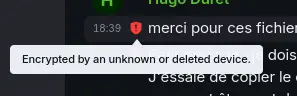
Depending on the particular setup, you can get a wide different variety of shield badges, and unless being a security
expert, it is hard to understand what are the exact impacts of each shield badge.
To solve this issue, the Matrix community (led by the Element team) started to work on a new way to handle encryption.
Latest attempts done by the Matrix community
In the last Matrix Conf, the community discussed the issue and proposed several solutions.
Kegan Dougal actually gave a talk about those UTD messages.
It was followed by another talk from Valère Fédronic about the Element take on how to improve things called “Invisible Cryptography”. Unfortunately, this talk was not recorded, but I had the chance to attend it.
The crux of the talk as I can recall it was that:
- Encryption should be invisible to users
- Users, messages, and rooms should never expose confusing “shields” to warn about encryption details - messages should either be visible and secure, or hidden outright.
Up until now, Element has been showing a shield icon when a message is not encrypted or encrypted on a device not properly verified… This is confusing for users. - Instead of showing a shield icon, Element should force users to sign their devices during the login process. If I cannot
log in without signing my device, I’m sure other users talking with me will not see the shield icon next to my name. - In order to log users quickly, they are designing a “log by QRCode” feature that is logging you in without asking for
your email, password and passphrase. This is a way to make the first connection frictionless. Problem: it works great
for a phone application, but is not practical for a web application used on the Desktop like WorkAdventure. - Element is even taking this further: Element will assume all devices it is talking to should be signed.
In fact, it will plainly ignore any device that is not signed (in an encrypted room) - Even further, if you have an unsigned device attached to your account, Element will refuse to send messages to other
users in an encrypted room (unless you manually force it to send each message). This is a way to force users to keep
only signed devices attached to their account.
This last bullet point is actually the issue that is causing the most trouble with WorkAdventure. By doing so, Element is pressuring other clients to sign devices by default. Which is a good thing for most instant messaging clients, but not for WorkAdventure. We will come back to this later.
Note: this “Invisible Crypto” plan is work in progress but being actively implemented and tested in Element X (the new version of Element).
Note: I don’t want to criticize Element or the “Invisible Crypto” plan here. I understand very well the rationale for it and in the context of Element (or any other application whose core feature is messaging), it makes sense. I just want to point out that some software like WorkAdventure can connect to Matrix without their primary purpose being messaging.
Common naming
As part of the effort to make encryption more user-friendly, the community is working on a common naming convention for encryption terms. This is important because Matrix being a protocol, each client comes with its own terminology for encryption concepts, making it hard for users to understand what is going on (especially when they switch from one client to another).
Andy Balaam proposed an MSC (Matrix Spec Changes) to standardize the terminology.
The MSC is called MSC4161: Crypto terminology for non-technical users
It proposes to standardize the naming of encryption concepts across all clients.
For instance, it advocates using the term “Device” instead of “Session” to refer to an instance of a client on a device.
The MSC is still a work in progress, but it is a good step in the right direction.
At WorkAdventure, we will of course align with this MSC as soon as it is accepted. I’m talking about it here because it highlights the fact that managing encryption keys is not only a technical issue but also a user experience issue.
How can we improve the management of encryption keys in WorkAdventure?
Trading security for convenience
Let’s start with the first solution we explored (and that we abandoned).
Our first idea was to break a taboo. It went like this:
Since most users are not used to having a passphrase, they will forget it. And most users don’t really care about the security of their messages in WorkAdventure. Messages are mostly used in a meeting to share links or reactions to the video chat anyway. So whenever a user enters an encrypted room, we could ask something like this:
“This room is encrypted. You need to create a passphrase to access it. You are responsible for this passphrase and must never lose it (otherwise you would lose all your message history). Do you want to create a passphrase now (this is more secure), or do you trust WorkAdventure for storing your passphrase on the server side (less secure but the WorkAdventure administrators will have access to your passphrase and can restore it should you forget it)?”
This would make E2E encryption completely optional.
I tested this idea with a few other Matrix client developers at Matrix Conf 2024, and they all told me that this was a bad idea. I would have expected most developers to tell me this was a bad idea from a security standpoint (that’s obvious), but the argument that really convinced me was that this was a bad idea for the Matrix ecosystem in general.
As soon as one client starts to break the rules (storing the passphrase on the server), it becomes a security issue for all the other clients. If a user connects to WorkAdventure and stores their passphrase on the server, they will compromise their passphrase for all the other clients they use. From a reputation standpoint, our decision to break the rules would have a negative impact on the whole Matrix ecosystem.
So we abandoned this idea.
When does the underlying SDK require the passphrase?
In WorkAdventure, since our first implementation of a Matrix client, we have been working hard on improving the user experience. Let’s first roll-back to the first version we developed to see what has been improved.
The first version of the Matrix client in WorkAdventure was quite close to the underlying library (matrix-js-sdk).
The matrix-js-sdk asks the implementor (WorkAdventure) to react to some events when it comes to encryption. This is known as the “crypto-callbacks” of the SDK.
For instance, when you initialize the SDK, you must pass a number of callbacks like this one:
const matrixClient = sdk.createClient({
    ...,
    cryptoCallbacks: {
        getSecretStorageKey: async (keys) => {
            // This function MUST prompt the user to enter their secret storage key.
            const mySecretStorageKeys = await promptUserForSecretStorageKey(keys);
            return mySecretStorageKeys;
        },
    },
});
At first, we did a pretty naive implementation of this callback (just like the one Element Web did in the past too).
The issue here is that the SDK can decide to prompt for the passphrase at any time. Maybe you receive an invitation to your first encrypted room, and the SDK decides to prompt for the passphrase.
A number of different events can trigger the passphrase prompt (or any other prompt actually), and the user is not prepared for it.
When should WorkAdventure require the passphrase?
To solve this issue, we already saw that Element X, through the “Invisible Crypto” plan, is trying to make the passphrase prompt happen at login time.
But as already discussed above, this is not something we want for WorkAdventure. If we cannot ask for the passphrase at login time, we need to find the proper moment for it, and for WorkAdventure, this moment is as late as possible.
When do we need WorkAdventure to act as a signed device?
- When we want to read / send messages in an encrypted room
- When we want to create a new encrypted room
The idea is to ask for the passphrase at those moments.
It can be counterintuitive because even if you don’t have a passphrase, you can still send and receive messages in an encrypted room (you just won’t be able to read the messages). Previous versions of WorkAdventure (and of Element) were allowing you to send messages in an encrypted room without your device being signed. Locally, you would see “Unable to decrypt” messages for your history. The other users would see a warning badge next to your messages.
These “Unable to decrypt” messages plus the warning badges can be totally prevented if we force the user to sign their device before entering an encrypted room. We can completely forbid seeing the messages of an encrypted room if the device is not signed.
Same for creating a new encrypted room. If the device is not signed, we prevent the user from creating an encrypted room (or we ask him/her to sign the device before creating the room).
Enticing our users to use E2E encryption (or not)
Let’s picture the journey of a new WorkAdventure user. After registering an account, the user chooses a new map and starts inviting their colleagues to join them. After a few days of usage, they decide it could be great to have a place to share messages, links and any kind of info that needs to be stored for a longer time or that does not require immediate attention. They create a new chat room for this.
At this point, the user faces the existence of E2E encryption for the first time.
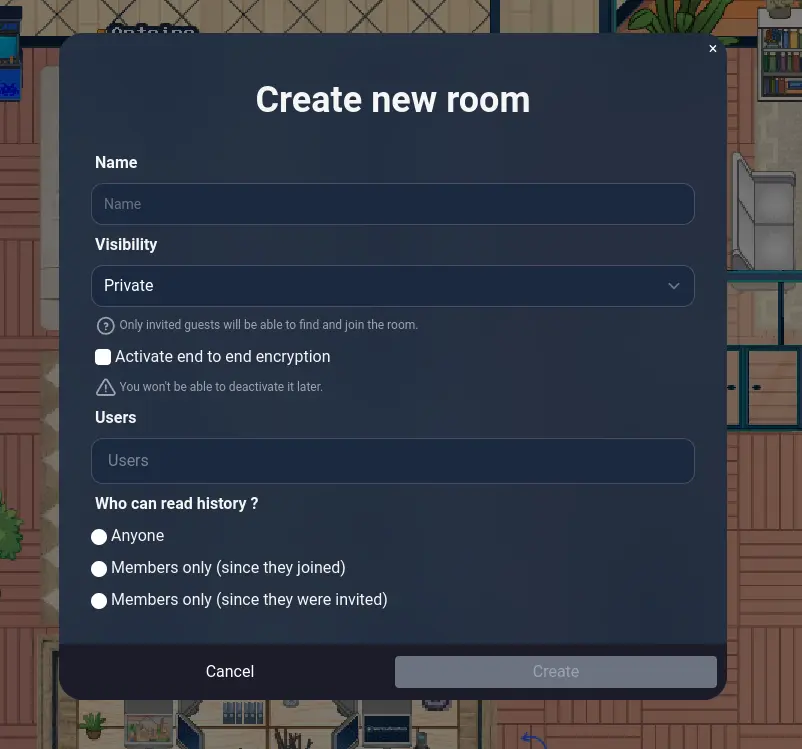
Above is a screenshot of our first attempt at designing the room creation dialog.
Most WorkAdventure users will not even be aware that they are using Matrix. They are newcomers to the notion of E2E encryption.
Put yourself in the shoes of this user. You don’t know anything about Matrix. All you want is to create a room to chat.
You are asked: “Do you want more security?”
“Sure I want more security!”
Why would you say no to more security?
So at this very stage, we need to make the user understand the consequences of enabling E2E encryption. Those consequences are that the user will be in charge of securing their device (so remembering a passphrase). But more than that! All users connecting to the room will have to secure their device too!
So enabling E2E encryption has a direct impact on the other users of the room.
We also need to explain that all messages are encrypted in transit (because of HTTPS) and therefore, no one spying on the network can read the messages.
On the other hand, we need to explain the benefits of E2E encryption. The messages will be encoded at rest on the server. Only the recipients will be able to read them. A hacker that would manage to get access to the server (or a rogue administrator) would not be able to decrypt the messages.
If we manage to make this process clear from the beginning, we can get the attention of the user and make the passphrase creation process more natural (the user will understand why). Hopefully, if the user understands the importance of the passphrase, they will be more likely not to forget it.
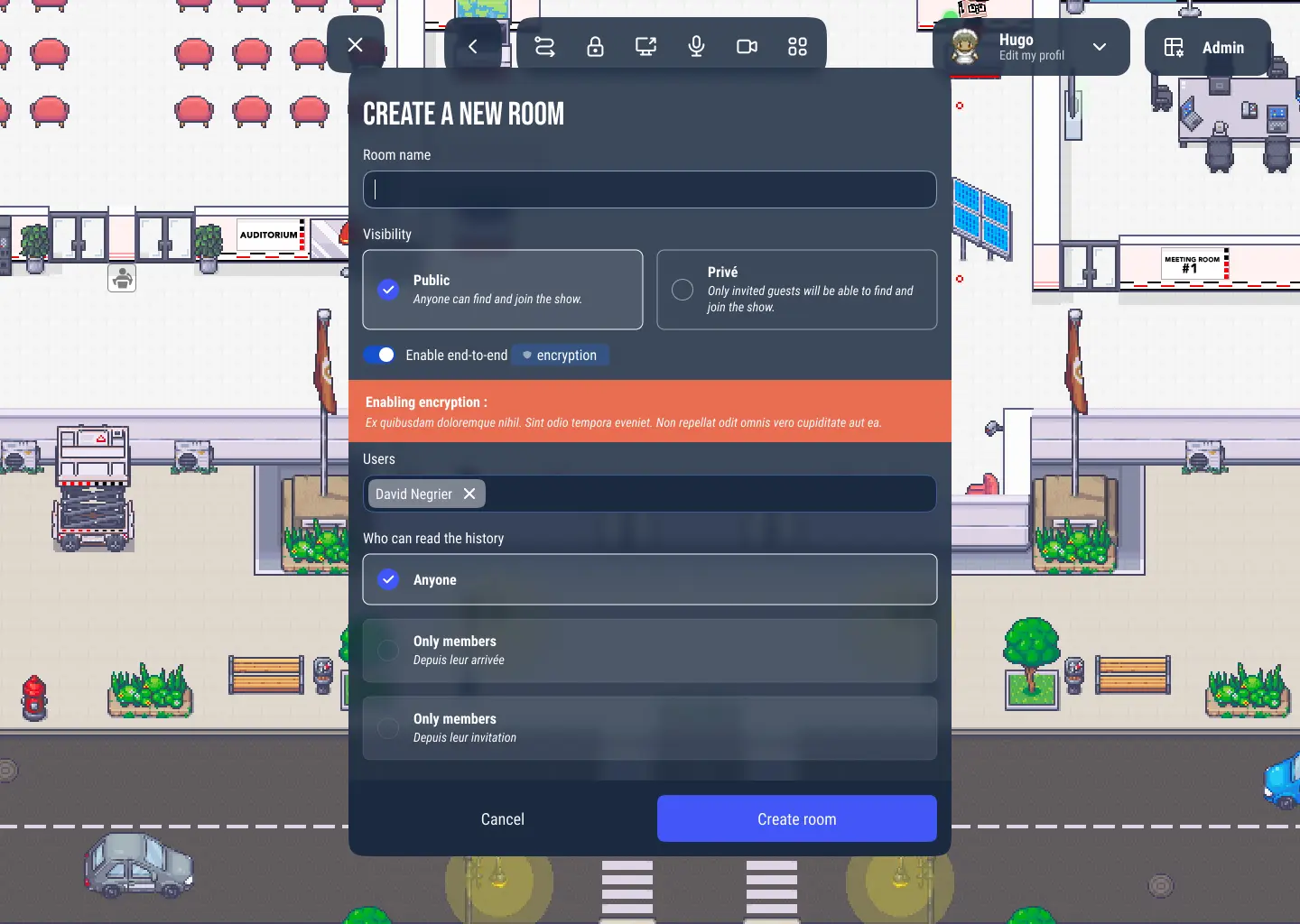
Above is a screenshot of our second attempt at designing the room creation dialog.
Adding a warning to the room creation dialog is a good step, but it is not enough. This will be only seen by the user
who creates the room. But other users connecting to the room for the first time will not see this warning. We need
to make sure that all users connecting to an encrypted room understand the importance of the passphrase.
Using video game techniques to explain encryption to the end user
WorkAdventure is different from a typical application or Matrix client: its design is inspired by video games!
Though we are not a video game, we have video games graphics directly inspired from the 32-bit consoles era.
Video games have advanced techniques to explain the rules of the game to the player. They use NPCs (Non-Player Characters),
tutorials, visual cues, etc.
In this chapter, we will explore how we can use video game techniques to explain the “rules” of encryption to the user.
Video game tutorials and how video games can be used to enhance learning and user experience has been widely studied:
- Learning to play: understanding in-game tutorials with a pilot study on implicit tutorials
- PolyGloT: A Personalized and Gamified eTutoring System
- PolyGloT-UML: A Gamified Framework for Enhancing UML Learning Paths
The intuition that we want to verify is that talking to an NPC (a non-player character) to set up the passphrase can be a good way to slow down the user and make them understand the importance of the passphrase.
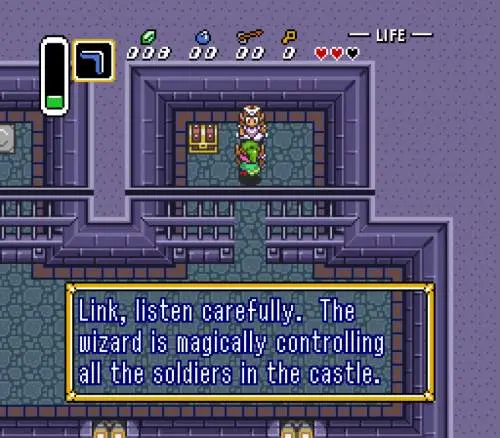
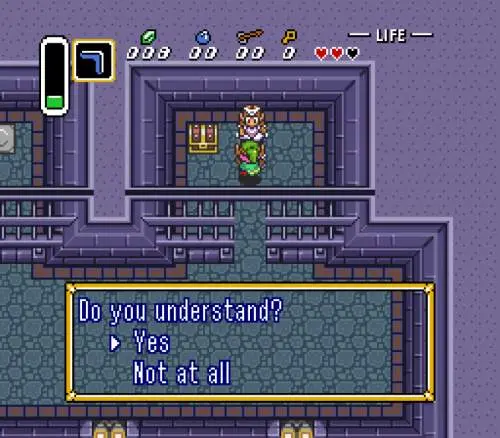
Above are screenshots from the game “Zelda: a link to the past”. You can see that the game uses NPCs to explain the mission. The text in the dialog box is relatively big (graphical constraints of the time) so the player has to read each sentence carefully before clicking on “next”. You can also see how the game adds interactivity to the dialog by asking the player questions at regular intervals.
Could we reproduce this in WorkAdventure? Maybe!
Enter the “key master”. The key master is the personification of the encryption mechanism. Each time the user faces questions related to encryption, they should talk to the key master. This character will make it clear we are talking about encryption. Our hope is that the character will make a bigger impact in the memory of the user than a simple popup. When the user logs on another computer after one year and is asked for the passphrase, we hope they will remember the key master they saw one year ago.
Because the user interface suddenly changes from a classical user interface (windows, forms, etc.) to a video game interface (a character talking to you), we hope to gain the attention of the user.

Above is a mockup of the key master.
As you can see, the popup containing the message is small. The picture of the key master on the left makes it obvious we are talking about encryption. There is no “wall of text” to read, just a few sentences. The user has to click on “next” to continue. The text will be displayed character by character and the user will have to wait for the text to be displayed before clicking on “next”. This is a way to make sure the user reads the text.
Highlighting keywords
In video games, it is common to highlight keywords in special colors or with a special icon. Let’s take a look at a screenshot of Zelda Breath of the Wild:
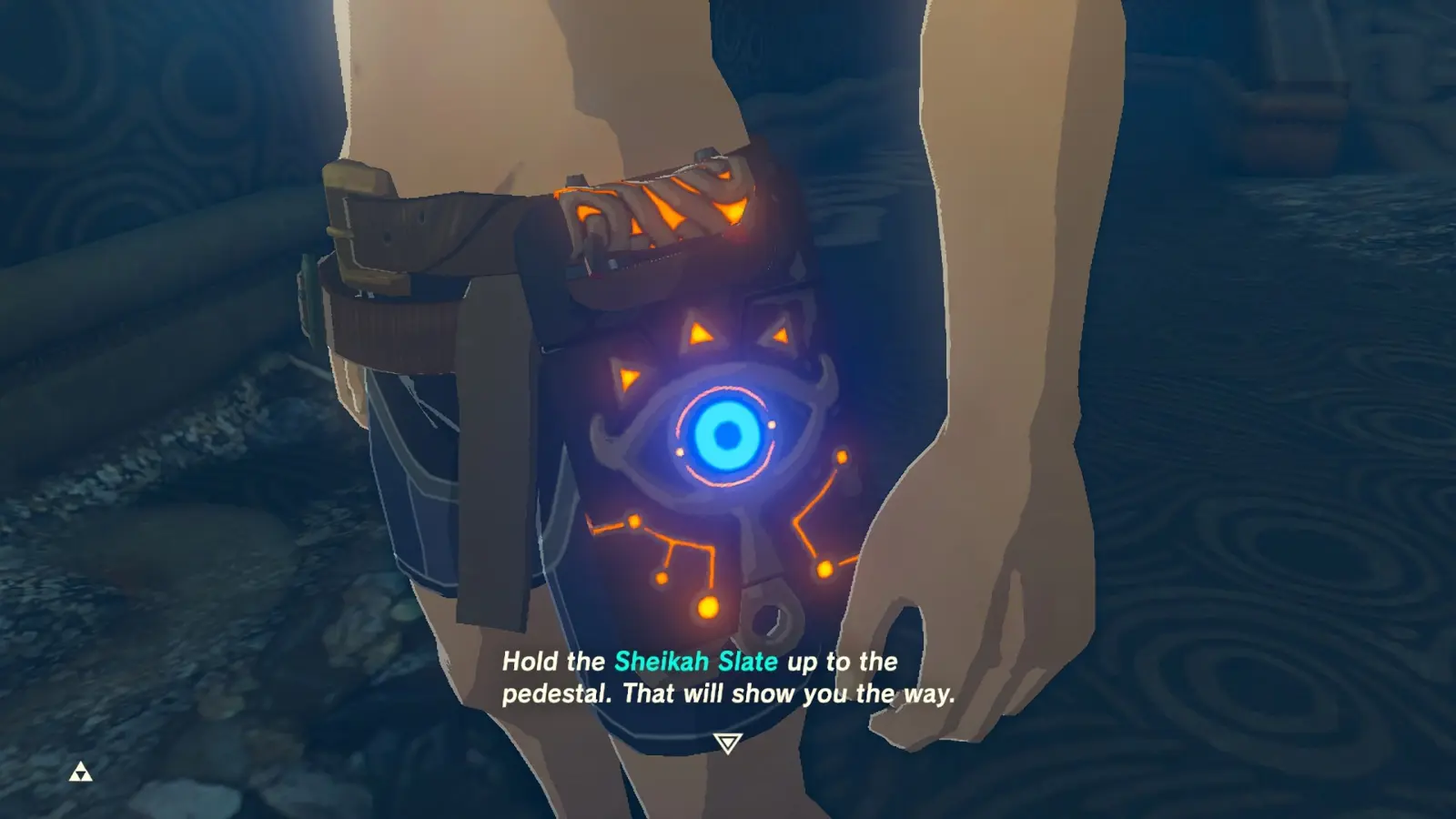
See how the game highlights the keywords “Sheikah Slate” in blue? This is a way to make sure the player understands the importance of this item.
We can do the same in WorkAdventure. For instance, we can highlight the words “recovery key” and “recovery passphrase” in blue (same color because they share the same purpose). And we could highlight the word “secure device” in red.
The good news is that we have MSC4161: Crypto terminology for non-technical users that standardizes the terminology. We can use this MSC to define the keywords.
Remembering the recovery key
WorkAdventure is built upon the matrix-js-sdk. This SDK has a number of limitations. One of those is that it is not possible to connect to Matrix with simultaneous accounts on the same device.
If you want to login with a new account, you need to disconnect the previous account and delete all data related to this account (including the encryption keys).
This is mostly a non-issue for Element, because Element is a messaging client. You usually have only one account and you usually connect once and keep the session open for a long time.
Most WorkAdventure users will have only one account too. But some users will often switch accounts. This is the case of WorkAdventure administrators who need to test the platform with different accounts. Each account is given different rights, and it is common to open access to sections of your map to only some users. In order to test this, you typically need to connect with different accounts.
When you switch accounts, you need to delete all data related to the previous account. This includes the encryption keys. If you want to connect again with the previous account, you need to enter the recovery key again. This can become quickly annoying.
A simple solution to this issue is to store the recovery key (or recovery passphrase) in the local storage of the browser. Of course, you need to ask the user for permission to store the recovery key in the local storage (the user might access WorkAdventure from a public computer in which case you don’t want to store it). But if the user agrees, you can store the recovery key in the local storage and ask the user to enter it only once. If the user logs out and in again, we can fetch the key from the local storage and use it to recover the encryption keys.
Compatibility with Element X (and the invisible crypto plan)
With our plan to delay securing a device as much as possible, we are going in the opposite direction of the “Invisible Crypto” plan spearheaded by Element. Let’s read a few sentences of the MSCs that are part of the “Invisible Crypto” initiative:
Devices which have not been cross-signed by the user are considered an error state, primarily to be encountered during the transition to MSC4153 and/or due to buggy/incomplete/outdated clients. These devices are referred to as not secure or insecure and their existence is considered a serious and dangerous error condition, similar to an invalid TLS certificate.
Ok. Those “buggy/incomplete/outdated clients” are us.
First of all, the MSCs are not yet accepted, so there might be room for discussion (and I hope this article will help this discussion).
But should the “Invisible Crypto” plan be accepted as is, we probably need to adapt our plan to make sure we are compatible with Element X.
As of now, if there is even a single device attached to your account that is not signed, Element X will refuse to send messages in an encrypted room. This is a problem for WorkAdventure because “not signed” devices are the default state for us.
I do expect that 95% of users of WorkAdventure will never connect to Element X or another Matrix client. I also don’t expect those users to connect to a Matrix room that has participants using other clients. The vast majority of interactions will be between WorkAdventure users (and even more, the vast majority of interactions will be between WorkAdventure users of the same company).
As I explained earlier, we don’t want to bother the majority of WorkAdventure users (that are “encryption illiterate”) with the recovery passphrase at login time.
But at the same time, for the “power users” (that connect to Element X or other clients), we need to make sure that they verify their device as soon as they log in (otherwise, as soon as they connect in WorkAdventure with a non verified device, they won’t be able to send messages anymore in Element X).
We have 2 seemingly contradictory requirements:
- We want to delay securing a device as much as possible for the majority of users
- But we need to secure the device at login time for the power users that are using Element X
What if we could have both?
The Matrix API allows us to query the devices attached to an account. And we can know if a device is signed or not.
If we had a way to know if the other devices connected to the account are using the “Invisible Crypto” plan, we could adapt our behavior.
- If no other device is using the “Invisible Crypto” plan, we can delay securing the device as much as possible
- If at least one device is using the “Invisible Crypto” plan, we need to secure the device at login time
It seems a good compromise.
Of course, this is a bit complex to implement. We need to query the devices of the account at login time and adapt our behavior accordingly. But it is feasible.
Conclusion
In this article, we have seen that managing encryption keys is not only a technical issue but also a user experience issue. The issue is shared by all Matrix clients, but the constraints are different for each client.
The Matrix ecosystem seems to be moving towards a “secure device by default” approach through the “Invisible Crypto” plan.
This is a good thing for most clients, but not for WorkAdventure that is mostly used for casual interactions between colleagues and that is not at its core a messaging application.
We have proposed a number of solutions to make the passphrase creation process more user-friendly. We have also proposed to use video game techniques to make the user understand the importance of the passphrase.
Finally, we have proposed a way to split our users into two categories: the majority of users that don’t need to secure their device at login time and the power users that need Matrix interoperability and that will need to secure their device at login time to adapt to the “Invisible Crypto” plan.
References:
- https://gitlab.matrix.org/matrix-org/olm/-/blob/master/docs/olm.md
- https://gitlab.matrix.org/matrix-org/olm/-/blob/master/docs/signing.md
- https://gitlab.matrix.org/matrix-org/olm/blob/master/docs/megolm.md
- https://www.youtube.com/watch?v=FHzh2Y7BABQ
- https://github.com/matrix-org/matrix-spec-proposals/blob/andybalaam/crypto-terminology/proposals/4161-crypto-terminology.md
- https://www.sciencedirect.com/science/article/pii/S2405844022027700