
Designing a dynamic and responsive action bar / burger menu

How to design a responsive menu?The evolution of technology and the variety of screens and displays demand something new from software products and interfaces: a smart and dynamic menu/action bar capable of adapting to every type of environment and screen configuration.
Since the responsive action bar is a must-have for modern apps, WorkAdventure will be part of a major redesign that will bring numerous innovative features, including a smart and adaptable burger menu.
Although this topic was highly studied and taught by tech developers and amateurs, most of the tutorials about dynamic action bars design only explain minor steps, such as breakpoints setup and switching from horizontal menus to burger menus where items are hidden behind a burger icon. And for this redesign, we would like to go beyond the first steps.
Beyond the basic tutorial
Foremost, WorkAdventure’s interface has some particularities that should be considered when it comes to menu buttons:
-
The menu items are already dynamic, which means that some buttons will only appear and disappear under certain circumstances. For example, the screen sharing button only appears when you talk to someone inside a discussion bubble or a meeting room.
-
Thanks to the scripting API, any developer can add specific buttons into the action bar. To give an illustration, a developer of an escape game could freely add a custom “inventory” option right there.
-
Last but not least, Hugo (our designer) has a lot of innovative ideas like splitting the menu in a left, center and right part.
In this scenario, WorkAdventure’s interface has numerous menu buttons that cannot fit in a single line. However, a dynamic action bar would help to display as many items as possible at the same time by moving them to the burger when they no longer fit the action bar line.
With that being said, let’s see how we can implement this super action bar in detail.
Centering some menu items
Centering items is easy nowadays with flexbox. It is possible to use the justify-content: center property on the
container of the items.
At first, we had a naive implementation that established an absolute position for the center buttons that were displayed on top of the left/right items. However, this basic configuration can cause issues, because if there are many items on the upper right menu, they can overflow the center buttons.

If we have too many items on the right side of the screen, we want those items to “push” the center items out of the middle part of the screen, to the left.

Nevertheless, it was not possible to do this in pure CSS. In fact, if you use a flexbox with three divs, the one in the center will not be perfectly centered on the screen, as it will adapt to the size of the left and right divs. In order to build a proper responsive action bar, it will be mandatory to rely on JavaScript.
Responsive menu with JavaScript
Firstly, we split our menu in two flexboxes.
The first flexbox must contain two divs:
- The left part of the action bar.
- Another flexbox that contains the center part and the right part of the action bar (let’s call it the C+R flexbox).
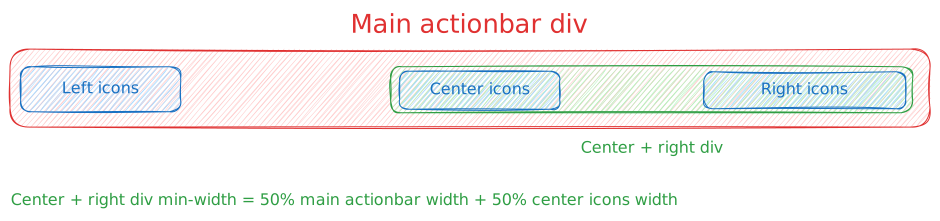
Secondly, the C+R flexbox will have a min-width set to 50% of the action bar + 50% of width of the center part. By aligning the center part at the left of the C+R flexbox and the right part at the right of the C+R flexbox, we can ensure that the center part will be centered on the screen.
Additionally, this is only a min-width. In case we have too many elements in the menu, the C+R flexbox will grow, and the center part will be automatically pushed to the left.
To make this work, we just need to adapt the min-width in case the action bar or the center div’s size change.
In a typical JavaScript application, we would use the ResizeObserver magic to detect when the center div or the action
bar div sizes change. However, in WorkAdventure we are using Svelte.
Svelte has a nice feature: the bind:offsetWidth directive
that automatically updates a variable when the width of the element changes, and this is exactly what we will be using instead.
The result merely takes 20 lines of code!
<script lang="ts">
let centerPlusRightDiv: HTMLDivElement;
let actionBarWidth: number;
let centerDivWidth: number;

$: if (centerPlusRightDiv) centerPlusRightDiv.style.minWidth = `${actionBarWidth*0.5 + centerDivWidth*0.5}px`;
</script>

<!-- The action bar div -->
<div bind:offsetWidth={actionBarWidth}>
        <!-- Left bar -->
        <div class="bg-red-500 h-full w-16"></div>

        <!-- Center + right bar -->
        <div class="bg-green-500 h-full flex justify-between items-center" bind:this={centerPlusRightDiv}>
                <!-- Center bar -->
                <div class="bg-blue-500 h-8 w-16 mx-2" bind:offsetWidth={centerDivWidth}></div>
                <!-- Right bar -->
                <div class="bg-violet-500 h-8 w-64 flex-none"></div>
        </div>
</div>
And the result:
After getting this done, it’s time to take the next step: the truly responsive action bar.
Building an “item-by-item” responsive action bar
How can we build a responsive burger menu? If we want to display as many items as possible in the action bar, it’s mandatory to move the items one by one to the burger menu when the action bar gets smaller than expected. Furthermore, it’s essential to remember that, due to WorkAdventure’s menu configuration and the scripting API, the items are dynamic by nature, and it’s difficult to know in advance how many items there will be in an action bar and what width they will have.
To build this accurate and responsive action bar, we will use a VisibilityObserver in conjunction with an overflow: hidden flexbox.
Here is the plan. The flexbox containing the right part of the action bar will have an overflow: hidden property, it must be a
flexbox with a justify-content set to flex-end. This way, items will be displayed from the right to the left.
When there is not enough space, items will be hidden on the left side.
Now for the fun part. The VisibilityObserver will watch the visibility of the items, it is a JavaScript class
that can be used to detect whether an element is visible within its parent container.
As soon as an item starts to be partially hidden (because of the overflow: hidden property), we will move this item
to the burger menu.
It is important to mention that the menu item must stay in the DOM and keep its position and size in the flexbox. By doing this, if the action bar grows again, the item will be completely visible within the parent container and will be displayed again.
To make sure the item keeps its position in the DOM, we use the visibility: hidden property instead of display: none
(aka class invisible in TailwindCSS).
In addition, we are going to create an intermediate component: VisibilityChecker. The role of this component is to display its content
only if it is completely visible within its parent container.
VisibilityChecker.svelte
<script lang="ts">
        import {onMount} from "svelte";

        export let parent: HTMLElement;
        let divElement: HTMLElement;

        export let isVisible = true;

        onMount(() => {
                const observer = new IntersectionObserver((entries) => {
                        entries.forEach(entry => {
                                isVisible = entry.isIntersecting;
                        });
                }, {
                        root: parent,
                        // Only trigger when the element is completely visible or as soon as it is partially hidden
                        threshold: 1.0
                });

                observer.observe(divElement);

                return () => {
                        observer.disconnect();
                };
        });
</script>

<div
                class:visible={isVisible}
                class:invisible={!isVisible}
                bind:this={divElement}>
        <slot/>
</div>
Notice that this component takes a parent prop. This is the parent container that will be used as the root for the IntersectionObserver.
Anything that renders within the component (via the slot directive) will be displayed only if the component is completely visible within its parent.
Moreover, we are exporting the “is visible” variable. We can bind to this variable in the parent component to know if the item is visible or not.
From within the menu, we can now use the VisibilityChecker component to display items only if they are visible.
Menu.svelte (highlight of the important parts)
<script lang="ts">
        let rightDiv: HTMLDivElement;
</script>

<div
        class="flex justify-between items-center ..."
>
        <!-- Rest of the menu goes here -->

                <!-- Right bar -->
                <div class="bg-violet-500 h-8 flex flex-row justify-end overflow-hidden flex-1"
                          bind:this={rightDiv}>
                        {#if rightDiv }
                                <!-- If the first menu item is visible,    -->
                                <VisibilityChecker parent={rightDiv}>
                                        <div class="bg-yellow-600 w-6 h-6 m-1 flex-none">1</div>
                                </VisibilityChecker>
                                <VisibilityChecker parent={rightDiv}>
                                        <div class="bg-yellow-600 w-6 h-6 m-1 flex-none">2</div>
                                </VisibilityChecker>
                                <VisibilityChecker parent={rightDiv}>
                                        <div class="bg-yellow-600 w-6 h-6 m-1 flex-none">3</div>
                                </VisibilityChecker>
                                <VisibilityChecker parent={rightDiv}>
                                        <div class="bg-yellow-600 w-6 h-6 m-1 flex-none">4</div>
                                </VisibilityChecker>
                                <VisibilityChecker parent={rightDiv}>
                                        <div class="bg-yellow-600 w-6 h-6 m-1 flex-none">5</div>
                                </VisibilityChecker>
                        {/if}
                </div>
        </div>
</div>
Putting the responsive action bar all together
You might have noticed that if we want to add the responsive behavior “item by item”, we need the right bar to be “shrinkable”.
In TailwindCSS, we can use the flex-1 class to make the div grow or shrink depending on the available space.
However, in order to make the right part push the menu to the left, we need the right part to have a fixed width.
As a way of getting that done, we used flex-none, because if we use flex-1, the right part would start shrinking as soon as we hit the center
part instead of pushing the center part to the left. Although we can’t have both of them at the same time, it isn’t mandatory.
If the menu has enough space for all the buttons, we know for sure that there is some space between the left buttons and the center buttons. Let’s call this the “wide” mode. If the left buttons and the center buttons are touching each others, then we know we are lacking space. We can then switch to the “shrunk” mode, with which some buttons will be hidden. Additionally, We can decide to switch back to “wide” mode as soon as the left-most button is shown.
To measure the space between the left buttons and the center buttons, we can simply add a div between the left and center buttons,
with flex-1 class. We can track its size with ResizeObserver, or if we are using Svelte, with the bind:offsetWidth directive.
Menu.svelte (final code)
<script lang="ts">
        import { peerStore } from "../../Stores/PeerStore";

        import { highlightFullScreen } from "../../Stores/ActionsCamStore";
        import VisibilityChecker from "./VisibilityChecker.svelte";

        let actionBar: HTMLDivElement;
        let centerPlusRightDiv: HTMLDivElement;
        let rightDiv: HTMLDivElement;
        let actionBarWidth: number;
        let centerDivWidth: number;
        let leftDivWidth: number;
        let leftToCenterWidth: number;

        $: if (centerPlusRightDiv) centerPlusRightDiv.style.minWidth = `${mode === "wide" ? Math.min(actionBarWidth*0.5 + centerDivWidth*0.5, actionBarWidth - leftDivWidth) : actionBarWidth - leftDivWidth}px`;
        $: if (centerPlusRightDiv) centerPlusRightDiv.style.maxWidth = `${actionBarWidth - leftDivWidth}px`;

        // In "wide" mode, all buttons are displayed and there is space between left and center buttons
        // In "shrunk" mode, some buttons are hidden and there is no space between left and center buttons
        // We go in "shrunk" mode when the space between left and center buttons is 0px
        // We go back in "wide" mode when all buttons are visible
        let mode : "wide"|"shrunk" = "wide";

        $: console.log("leftToCenterWidth is "+leftToCenterWidth);
        $: if (leftToCenterWidth === 0 ) {
                console.log("Switching to shrunk mode");
                mode = "shrunk";
        }

        let fullMenuVisible;

        $: if (fullMenuVisible) {
                console.log("Switching to wide mode");
                mode = "wide";
        }

</script>

<div
        class="@container/actions w-full h-10 z-[301] transition-all pointer-events-none bp-menu flex justify-between items-center overflow-hidden {$peerStore.size > 0 &&
        $highlightFullScreen
                ? 'hidden'
                : ''}"
        bind:offsetWidth={actionBarWidth}
        bind:this={actionBar}
>
        <!-- Left bar -->
        <div class="flex-1 flex h-8">
                <div class="bg-red-500 h-full w-16 flex-none" bind:offsetWidth={leftDivWidth}>
a
                </div>
                {#if mode === "wide" }
                <div class="bg-gray-600 w-0 h-8 flex-1 min-w-0 flex justify-end" bind:offsetWidth={leftToCenterWidth}></div>
                {/if}
        </div>
        <!-- Center + right bar -->
        <div class="bg-green-500 h-full flex justify-between "
                  class:flex-none={mode === "wide"}
                  class:flex-1={mode === "shrunk"}
                  bind:this={centerPlusRightDiv}>
                <!-- Center bar -->
                <div class="bg-blue-500 h-8 w-16 mx-2 flex justify-end" bind:offsetWidth={centerDivWidth}>
                        <div class="bg-yellow-600 w-6 h-6 m-1 flex-none"></div>
                        <div class="bg-yellow-600 w-6 h-6 m-1 flex-none"></div>
                </div>
                <!-- Right bar -->
                <div class="bg-violet-500 h-8 flex flex-row justify-end overflow-hidden"
                          class:flex-none={mode === "wide"}
                          class:flex-1={mode === "shrunk"}
                          bind:this={rightDiv}>
                        {#if rightDiv }
                                <VisibilityChecker parent={rightDiv} bind:isVisible={fullMenuVisible}>
                                        <div class="bg-yellow-600 w-6 h-6 m-1 flex-none">1</div>
                                </VisibilityChecker>
                                <VisibilityChecker parent={rightDiv}>
                                        <div class="bg-yellow-600 w-6 h-6 m-1 flex-none">2</div>
                                </VisibilityChecker>
                                <VisibilityChecker parent={rightDiv}>
                                        <div class="bg-yellow-600 w-6 h-6 m-1 flex-none">3</div>
                                </VisibilityChecker>
                                <VisibilityChecker parent={rightDiv}>
                                        <div class="bg-yellow-600 w-6 h-6 m-1 flex-none">4</div>
                                </VisibilityChecker>
                                <VisibilityChecker parent={rightDiv}>
                                        <div class="bg-yellow-600 w-6 h-6 m-1 flex-none">5</div>
                                </VisibilityChecker>
                        {/if}
                </div>
        </div>
</div>
And after all this process, the final result looks like this: