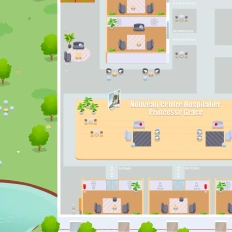
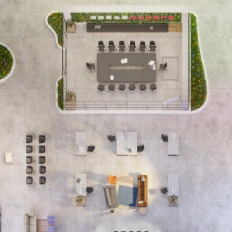
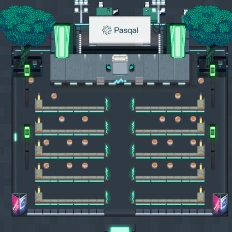
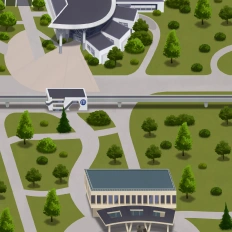
Organize an online Meet & Greet event with WorkAdventure. This virtual world platform allows you to create digital environments with multiple spaces where people can gather, interact with each other, and meet their idols.
Connect to the Meet & Greet event no matter where you are and get to know participants from all over the world, alongside your beloved idol. Furthermore, people with mobility impairments can also easily access this tech event with just one click.
1-1 interaction without chaos
Arrange different virtual spaces where people can wait, casually speak with each other, play games, and have fun before meeting their idols at a scheduled time.
Customized environments
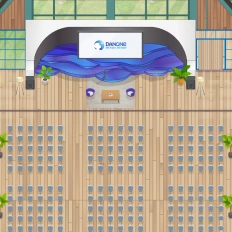
Personalize your virtual map according to the theme of the event and respond to all your needs and preferences thanks to the unlimited visual possibilities offered by WorkAdventure.
Reducing social anxiety
Give people a chance to speak to their idols online with their avatars, helping to reduce the normal anxiety and awkwardness of in-person encounters.
“Workadventure offers a great opportunity to implement our project and hold public events. it is always an experience to see hundreds of pixel characters walking across the map.”
Tobias Kirschke
Security Analyst CERT and Technical lead TI_ctf
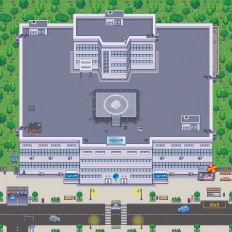
Designed for a meet & greet event.
Features You’ll Love
Discover the tools that make virtual events feel personal, dynamic, and efficient. From spaces with customized themes and live chat with participants, CEOs, and idols, these features are designed to recreate and elevate the experience of in-person social gatherings. Whether you’re hosting a Meet & Greet, a networking event, a product launch, an online hackathon, a convention, a conference, or a workshop, your social events have never felt more engaging.
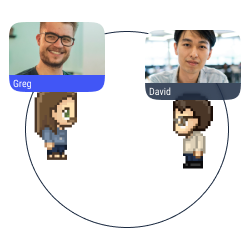
Proximity chat
Approach an avatar with your own avatar to start a conversation (text, audio, or video) in a bubble.
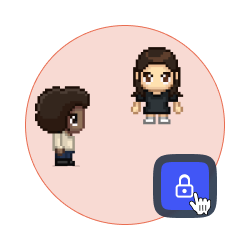
Lock a discussion
Forbid access to your discussion bubble to avoid distractions and disturbances.
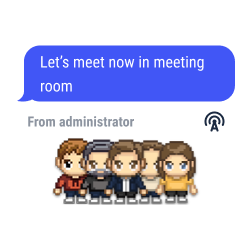
Global announcements and pinned messages
Send text, audio or video messages to all the users connected to your map.
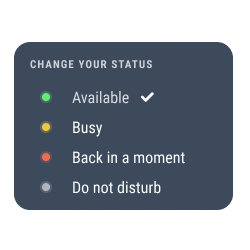
Change your status
Select your status to show how available you are. The status modifications are also automatically shown on Microsoft Teams, Discord, Slack, etc.
White label mode
Personalize your space with the colors and the brand elements of your company (logo, interface, personalized domain, etc.).
Your space, your style
Add items, pictures and links to your place to feel comfortable with your decoration.
You can also call on our design team to create a custom map—perfectly aligned with your company’s branding or completely out of the box: under palm trees, in your HQ offices, or on a distant planet.
Why does the microphone change automatically every time I connect?
If your microphone changes every time you join your virtual office, the issue usually comes from the browser or the system automatically selecting another available audio device.
On Mac, this often happens when the iPhone is detected as an external microphone. Chrome may then treat it as the default device and use it instead of the Mac’s built in microphone.
To fix this, open Chrome and go to Settings, Privacy and security, Site settings, then Microphone. In this section, explicitly select your Mac’s internal microphone, such as Internal Microphone or MacBook Microphone.
It is also recommended to check the setting on the macOS side by going to System Settings, then Sound, then Input. The built in microphone should also be set as the main input source.
If the wrong microphone is still being used, completely quit Chrome, restart the browser, then reconnect to your virtual office. This often helps reset the audio device detection.
Why does the camera change automatically every time I connect?
If the selected camera is not always the right one when you join your virtual office, Chrome is probably detecting several available cameras and automatically choosing the one it considers to be the priority device.
This can happen on Mac when the iPhone is offered as a camera in addition to the computer’s built in camera. The browser may then use the wrong video source when a session starts.
To fix this, open Chrome and go to Settings, Privacy and security, Site settings, then Camera. Then select your Mac’s built in camera as the default camera.
Once this change has been made, it is best to completely close the tab or the browser, then reconnect to your virtual office.
The browser uses the phone microphone instead of the Mac microphone
This behavior is usually related to the Apple ecosystem. When an iPhone is close to the Mac and recognized as an available device, it may appear in Chrome as a usable audio source. The browser may then select it automatically, even if it is not the desired device.
In this case, you should check both Chrome settings and Mac settings. You can also choose to set your default microphone directly in WorkAdventure. It will be activated whenever available for each of your sessions. To do this, go to the microphone settings, click the chevron, and set your default microphone.
My browser does not keep the correct camera
When multiple video devices are available, Chrome may reuse the last device used or automatically select a new one. This behavior can vary from one session to another, especially if an iPhone, an external webcam, or a monitor with a built in camera is detected.
The best solution is to explicitly select the correct camera in Chrome settings and check the site specific permissions as well. To do this, click the icon to the left of your virtual office URL and make sure camera access is allowed.
You can also choose to set your default camera directly in WorkAdventure. It will be activated whenever available for each of your sessions. To do this, go to the camera settings, click the chevron, and set your default camera.
Beyond the
Meet & Greet
There’s more to explore beyond the online meet & greet experience. From immersive digital workshops to interactive conventions, conferences, product launches, hackathons, and online networking. Discover how digital spaces can transform the way you gather people and host social and professional events. Dive into related pages to see how virtual events are evolving across different formats.