
WorkAdventure 1.34 is now available! This release has two sides.
For world administrators, it is the biggest batch of new tools we have shipped in a long time. Analytics shows you how your world is actually used, the visitors list shows who registered, and webhooks push those events into your own systems. Each world now also has its own privacy policy, so you can stay on the right side of the GDPR while you do all this.
For everyone else, 1.34 is a quality-of-life release. You can raise your hand in a meeting, worlds load in a background tab, unmuting is instant, virtual backgrounds are smoother and video encoding is lighter on your CPU.
Analytics
How many people came to your world last week? How long did they stay? Was the new meeting room used at all? Did the people who came to your event actually talk to each other? Until now, the honest answer was “we don’t know”. Starting with 1.34, you can open Analytics in the admin dashboard and find out.
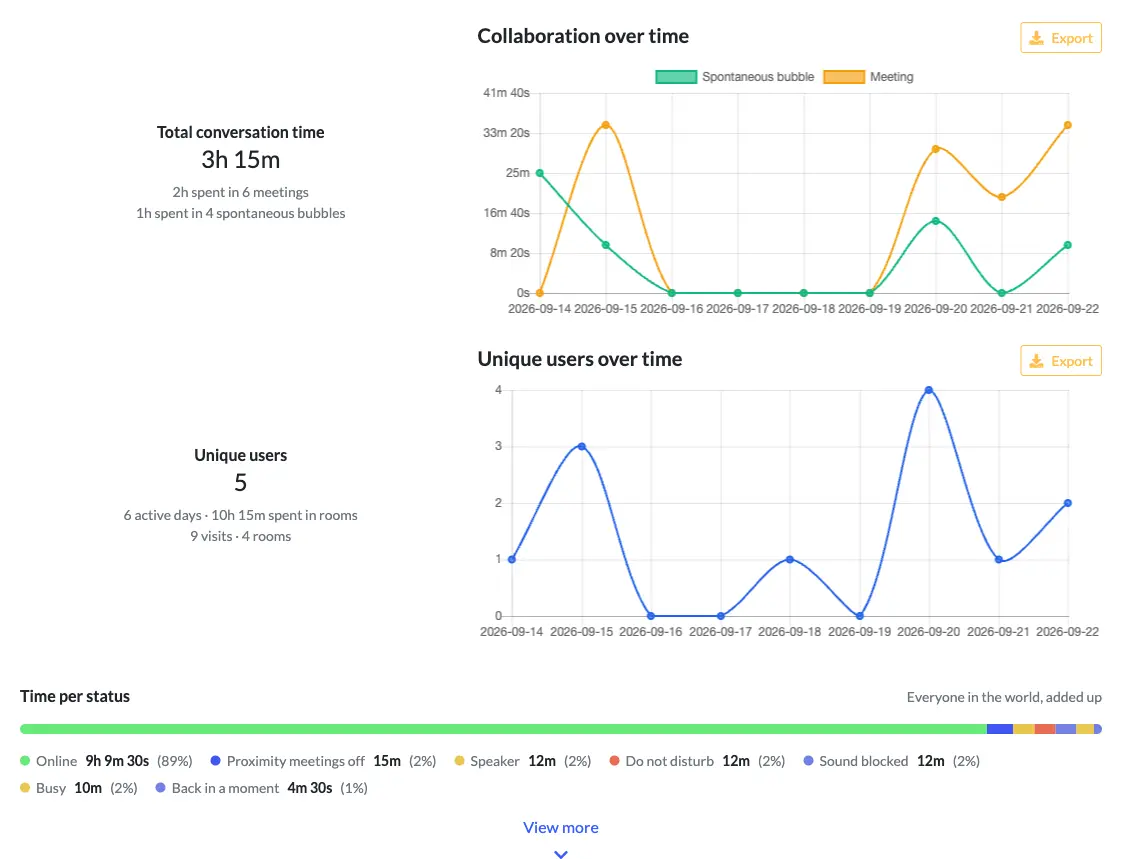
Choose a world and a period. The overview shows:
- the total conversation time, split between spontaneous bubbles and meetings;
- the number of unique users, with their visits and active days;
- the time per status (online, busy, away, do not disturb…), summed over everyone.
Filter by room or area to focus on one place, then dig into the tabs:
- Rooms and Users: conversation time, connection time and last activity for each room and each person.
- Areas: time spent in each area, number of people, entries and average visit length. This is the tab to check whether your sponsor booths or your meeting rooms got any traffic.
- Content: the websites, documents and media that were opened, and from which areas.
- Actions: screen shares, chat messages, map edits.
- Meetings: every conversation that ended during the period, with its duration and number of participants.
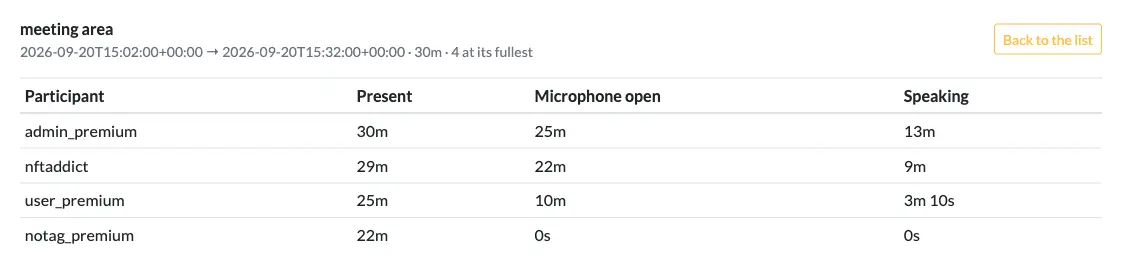
Open a meeting to see who was present, how long each participant had their microphone open, and how long they actually spoke. It is a good way to check whether your weekly all-hands is a conversation or a monologue.
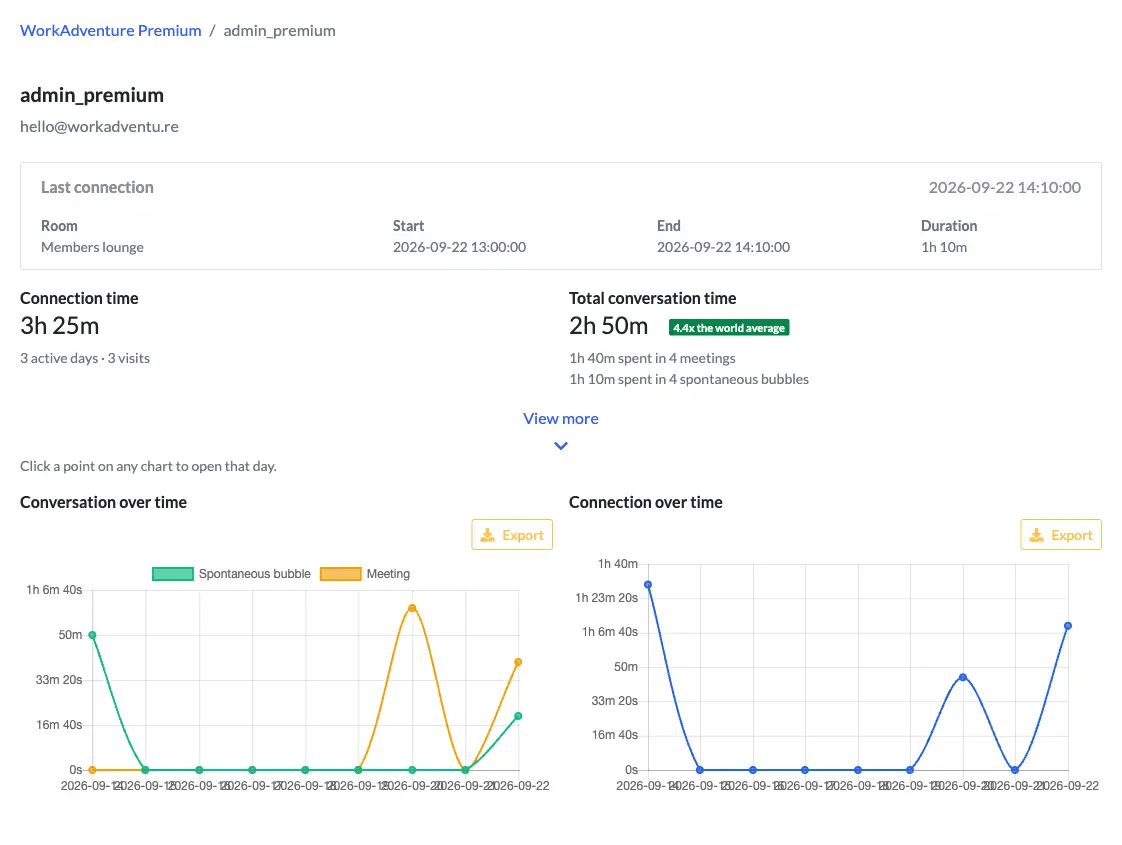
You can also open a member’s page and go down to a single day or session. You will see the rooms they visited, the areas they crossed, the content they opened and the meetings they joined.
Every chart and table has an Export button that downloads the data as a CSV file. If you want the raw events in
your own tools, subscribe a webhook to analytics (see below).
Privacy first
Analytics about people are personal data, so you decide what is collected. In Edit world › Analytics, you can turn collection off for the whole world, or turn off categories one by one: presence, collaboration, workspace actions, quality diagnostics and user-level activity.
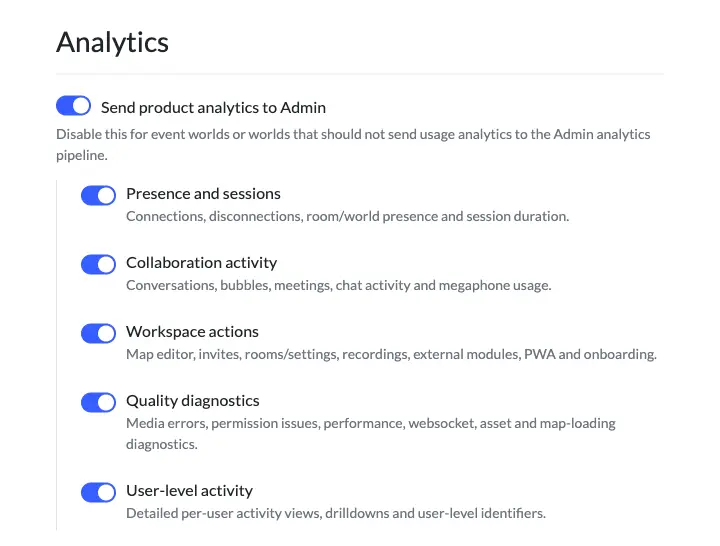
Turn off user-level activity and new data is stored under a pseudonym, without the IP address. You still get the world-level figures, but nobody can open an individual’s page. Analytics data is deleted after 3 months, and your world’s privacy policy (see below) is updated automatically when you change these settings.
Analytics is part of the Premium plan. On the free plan, the summary cards and the two charts at the top of the page show your real data, so you can get a feel for it before upgrading. The full guide is in the Analytics documentation.
Raise your hand
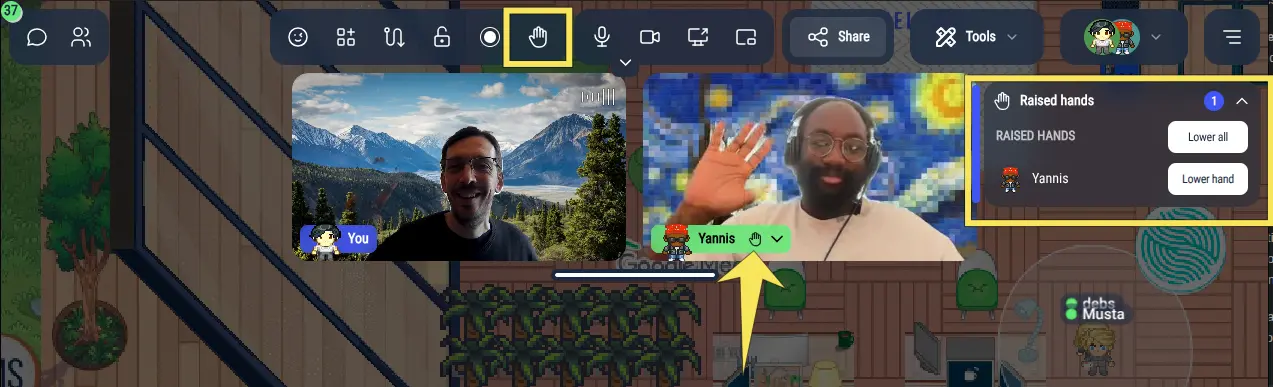
In a large meeting, asking a question without talking over the speaker used to be awkward. You can now raise your hand in a bubble, in a meeting room or in an audience zone. Raised hands are visible to everyone and listed in the order they were raised, so the speaker knows who was first. Administrators can lower a participant’s hand if needed.
Raised hands are especially useful with podiums and audience zones. Listeners cannot normally be heard in an audience zone, but the speaker can now give the floor to someone who raised their hand. That person can ask their question to the whole room, without walking up to the stage.
TIP
Anyone who walks onto a podium becomes a speaker. If you want the speaker to control who talks, lock the podium: put a “restricted rights” area on the podium so that only your speakers can enter it. The speaker can then grant the floor to someone in the audience, and that person can ask their question without walking up to the stage.
The visitors list
People who self-register on your world are now listed in the admin dashboard, under Visitors. They are the people who clicked “Register” on your login page, or signed in with Google, LinkedIn, GitHub or Microsoft. The list shows their name, email and registration date, plus one column for each consent question you asked them (granted, denied or not asked yet). Export it as a CSV file and it is ready to import into your mailing tool.
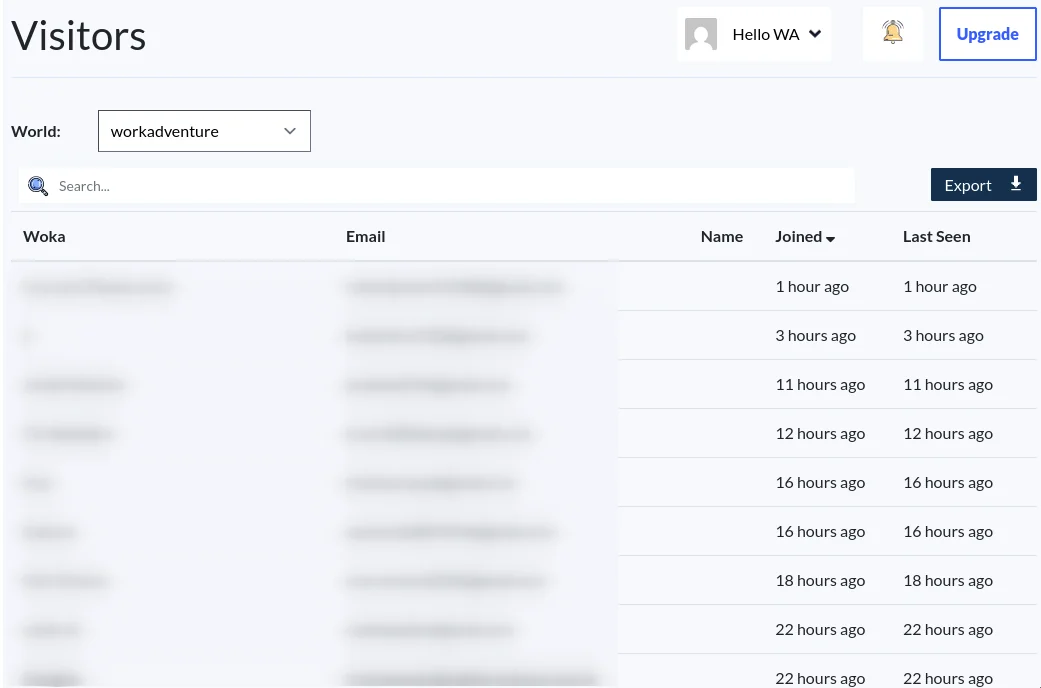
If you run a showroom, a demo map or an office with an open door, this turns WorkAdventure into a source of qualified, consent-backed leads. We wrote a whole article about it: Turn your virtual space into a lead magnet.
The visitors list is part of the Premium plan. See Access the visitors list for details.
A privacy policy for each world
The visitors list and analytics have one thing in common. They let you do something with your users’ personal data that WorkAdventure does not do on its own behalf. You may want to send a newsletter to your visitors, and that is perfectly legitimate. But WorkAdventure cannot know what you intend to do, so we cannot write that part of the privacy policy for you.
So the privacy policy has been split in two. In GDPR terms, you are the data controller for your world, and WorkAdventure is your data processor. Each world now has its own privacy policy, generated from its actual configuration (anonymous access, chat, video backend, analytics settings…). It names you as the data controller, and your users can read it from the registration page and from inside the game.
WARNING
This concerns every world administrator, not only the ones who want the new features.
The privacy policy your users see is now your world’s policy, and it is published in your name. Take two minutes to review it in Settings → Privacy / Compliance:
- tick the purposes you actually use personal data for (newsletter, event updates, surveys…), and nothing more;
- fill in the contact email published in the policy. Otherwise, it defaults to the email of the person who created the organization;
- or, if your legal department already has a policy, link to your own privacy policy, terms of use and cookie policy instead.
The visitors list stays locked until the privacy policy is configured.
When a purpose requires consent (marketing emails, surveys, sharing data with a third party), WorkAdventure asks your visitors for it when they register, and records the answer. The answers show up in the visitors list, so you can prove who agreed to what, and when.
The reasons behind this change are explained in Your world, your privacy policy, and the settings are described in Configuring your privacy policy.
Webhooks
Webhooks push events from your world to your own server, as they happen.
The only webhook available until now was a webhook to detect a user connecting to the map.
We now have many more webhooks, and you can register several webhooks per world. For a given webhook, you can decide which event types you want to receive.
Here are the event types you can subscribe to:
recording.completedwhen a meeting recording is ready, with a download link;visitor.registeredwhen someone self-registers on your world;consent.changedwhen a visitor grants or withdraws a consent;member.connectingto update a member’s tags from your own system each time they connect;- and
analyticsfor the raw analytics events (experimental).
Furthermore, the new webhooks have signed deliveries that follow the Standard Webhooks specification, so an off-the-shelf library in your language can check that a request really comes from WorkAdventure.
A published Swagger / OpenAPI 3.1 document describes the payload for each webhook.
Together with the visitors list, this makes it easy to push new visitors and their consent into a CRM or a mailing tool in real time. Set up your endpoints in Developers › Webhook settings and read the webhooks documentation for a minimal receiver.
Kick and ban from inside the game
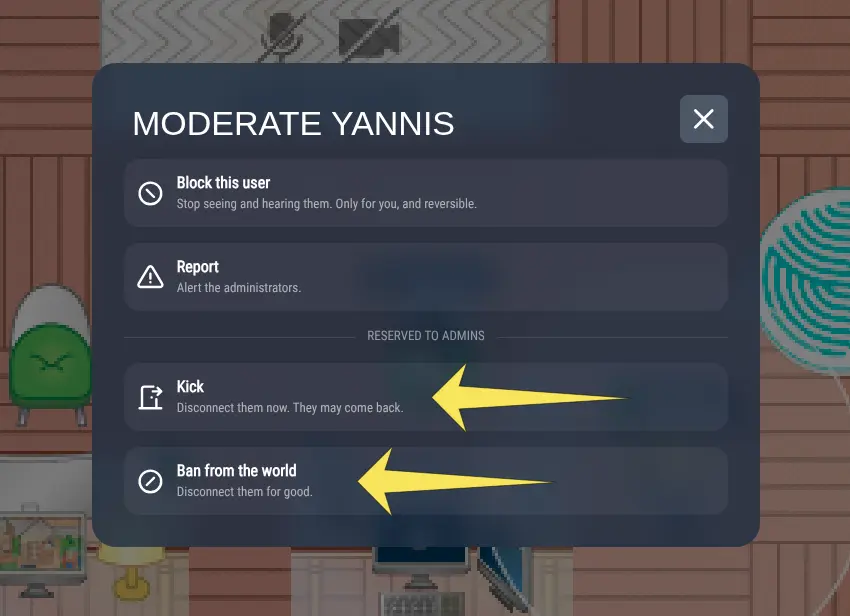
Banning someone used to mean leaving the meeting, opening the admin dashboard, finding the user in a list and banning them from there. That is a lot of clicks for something you usually need to do right now. In 1.34, moderators can act directly from inside the game.
- Kick disconnects a user from the world. They can come back, so kicking is for the colleague who left a tab open in a meeting room before going home, rather than for misbehavior.
- Ban keeps a user out of your world. You can now choose between banning the account and banning the IP address. Before you confirm an IP ban, WorkAdventure shows who else connected from that address recently, so you do not lock out half of a school or a company by accident.
NOTE
Self-hosting? Kicking works with any logged user who has the “admin” tag, even without an admin API. Banning needs the hosted version, because the self-hosted version has no database and a ban has to be stored somewhere.
See Moderation in the documentation.
Everything else
A gong, a jukebox, or any sound everyone can hear
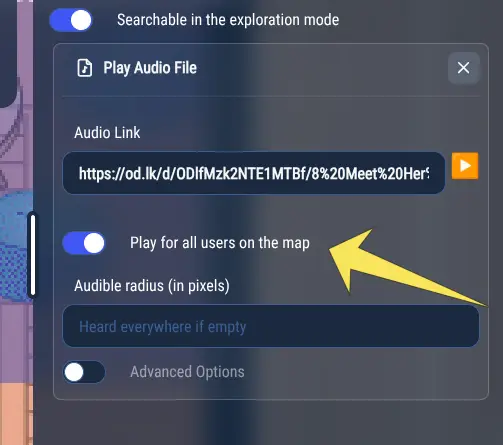
The map editor already let you attach a sound to an object, but only the person who triggered it could hear it. Starting with 1.34, a sound can be heard by everyone on the map, or only by people within a radius around the object.
Ring a gong when a big project ships, play a chime to call people to the keynote, or put a jukebox in the break room.
Many thanks to @Pix3lqu4ntum and their team for this feature, and for their first contribution to WorkAdventure!
WorkAdventure loads in a background tab
Until now, WorkAdventure only loaded when its tab was in the foreground. This came from Phaser, the game engine we use, and it was surprisingly hard to work around. If you pinned WorkAdventure in your browser, you had to click its tab before it would load. This is fixed: pin WorkAdventure, start your browser, and people can come and talk to you directly.
Instant unmute
Unmuting could take a few seconds, especially with Bluetooth headphones like AirPods, and the sound quality sometimes dropped right after. Both problems are fixed: unmuting is now instant, and the audio stays clean.
Smoother virtual backgrounds
Virtual backgrounds now run on a new model, which separates you from your background more accurately and at a lower cost. The work happens in a web worker and the GPU, so the interface stays responsive. The mask is also smoothed over time, which removes most of the flickering around your silhouette.
NOTE
To get virtual backgrounds to be processed by the GPU, we had to remove video backgrounds. No more animated “Matrix” background, sorry!
Better video quality, less CPU
A blurry screen share and a laptop fan taking off are two sides of the same trade-off. WorkAdventure 1.34 now adapts the codec and the topology to each user’s device, CPU and network:
- In a P2P bubble, nobody encodes video for a participant who is not displaying it.
- Mobile phones only use codecs their hardware can accelerate, which saves both CPU and battery.
- When a sender’s CPU cannot keep up, WorkAdventure switches that sender to a cheaper codec.
- If that sender is in a bubble with several P2P viewers, the bubble moves to a LiveKit room, so the sender only has to encode one stream instead of one per participant.
The full story is in Sharp video without melting your CPU: how WorkAdventure picks codecs.
Chat links open as co-websites
Links posted in the chat now open as a co-website next to the map whenever the site allows it, instead of in a new browser tab. You can look at the page together with the people you are talking to.
Configurable “away” privacy defaults
When the WorkAdventure tab is in the background, you are considered “away”, and you choose whether your camera and microphone stay shared while you are away. The defaults (share the microphone, not the camera) have not changed, but they are now configurable for the whole world. So world administrators can now decide if in away mode, by default, the camera and microphone are shared or not. At any point, the users can override those defaults.
Thanks to @0xr2po for this first contribution!
Vietnamese and Thai
WorkAdventure is now available in Vietnamese and Thai. Xin chào and สวัสดี to our new users!
Bug fixes
This release fixes many bugs. The most visible one is a regression introduced in 1.31: in large meetings, the active speaker was no longer moved to the top of the participants list, so everyone had to scroll to find who was talking. It is fixed.
Among the other fixes:
- P2P connections now really reconnect after a network glitch.
- Shared links using
#moveTowalk you to the right place again. - Older chat messages show the sender’s name instead of their Matrix ID.
- You can now upload maps whose zip size is bigger than 100 MB.
Welcome to our new contributors
A warm welcome to @0xr2po and @Pix3lqu4ntum, who made their first contributions to WorkAdventure in this release. Thank you!
What’s next?
In the next releases, we will:
- continue the stabilization work on audio and video;
- improve noise suppression with a new model;
- ship a desktop application;
- let you drag to pan the map.
In the meantime, open Analytics in your admin dashboard and see how your world has been used. And while you are there, take two minutes to review your world’s privacy policy!