
A screen share whose text you cannot quite read. A webcam that stutters. A laptop fan taking off and battery draining faster than it should. These look like three different bugs. They are three views of the same trade-off, and WorkAdventure 1.34 ships a mechanism that spends its time arbitrating it.
This article explains the trade-off, and what we decided to do about it.
Every video call in your browser runs the same four codecs
There is no secret codec. Chrome, Edge, Firefox and Safari all ship essentially the same WebRTC stack, and it encodes video with H.264, VP8, VP9 or AV1. A web application cannot bring its own encoder — no plugin, no native module, nothing to install — so every browser-based conferencing product, ours included, is choosing among the same four.
Which means the quality difference between two of these products is never “they have a better codec”. It comes down to three decisions:
- which of the four codecs to use, for whom, at what moment;
- how much bandwidth you are willing to spend on the picture;
- how much of the user’s CPU you are willing to burn to get it.
That is the whole game. Everything below is about playing it well.
The triangle: quality, bandwidth, CPU
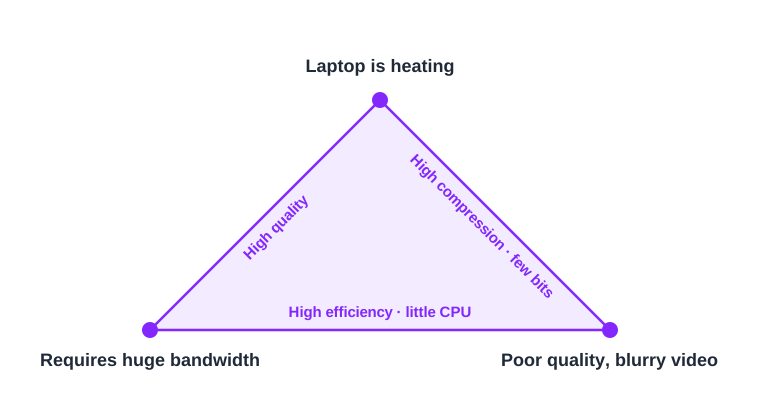
Video codecs improve roughly one generation at a time, and each generation buys about 30 % fewer bits for the same picture. In the budget WorkAdventure uses, relative to AV1: VP9 needs about 1.4× the bitrate for the same visual result, and H.264 or VP8 about 2×. Put the other way round, AV1 shows you the same slide at half the bandwidth of H.264.
That saving is not free. It is paid in arithmetic. As a rough order of magnitude, encoding VP9 in software costs about twice what VP8 costs, and AV1 three to five times. The newer the codec, the more work per frame — that is how it saves the bits.
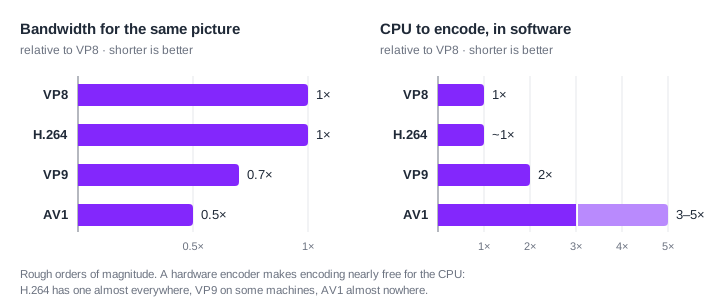
Hardware encoders change the whole calculation. Modern chips carry a dedicated video encoding block, usually on the GPU die — NVENC on NVIDIA, Quick Sync on Intel, VideoToolbox on Apple silicon, MediaCodec on Android. When one exists for your codec, encoding is nearly free for the CPU. When it does not, every single frame is paid for by the general-purpose cores, which are also running your browser and the map.
H.264 has a hardware encoder almost everywhere. VP9 has one on some machines. AV1 has one on very recent GPUs and almost nowhere else. And macOS, notably, has no hardware encoder for VP8, VP9 or AV1 at all — on a Mac, H.264 is the only rung that genuinely frees the CPU.
In the case of WorkAdventure, there is one more important factor. WorkAdventure tries to keep conversation in full-mesh P2P up to 4 users: your browser opens one connection per person you are talking to, and encodes every frame once per viewer, because there is no way to tell the browser to encode once and send the frame many times. Four people in a bubble means your machine encodes your camera three times over. Add a 1440p screen share in AV1 on top and the laptop is doing serious work!
How we got here
WorkAdventure has walked the whole length of that triangle, one complaint at a time.
We started on VP8, the codec every WebRTC browser is required to support. In 1.28, at the start of 2026, we moved cameras and screen shares to VP9, which draws the same picture with about 30 % fewer bits. For cameras, that was the end of the story.
Screen shares were another matter. Users told us, again and again, that the text in a shared screen was blurry: code you could not read, spreadsheets you had to ask someone to zoom into. Text is the worst case for a video codec — thin, high-contrast edges that are expensive to keep sharp — and that is exactly where AV1 shines. So 1.33.0 moved screen shares to AV1, and the blurry text went away.
Then the other side of the triangle sent its bill. AV1 is encoded in software on almost every machine, and a 1080p or 1440p screen share in AV1 is serious work for a laptop. Reports came in of computers heating up, videos stuttering, and the whole machine turning laggy for as long as someone was sharing their screen. 1.33.8 put screen shares back on VP9 as a stop-gap, keeping the AV1 bitrates — a small loss of sharpness against a CPU saving people were actively asking for.
Neither answer was right for everyone, because a single fixed codec cannot be. That is what the work in 1.34 is about.
Where 1.33 stands
Before the new part, here is what the 1.33 series already did, since most of it stays. You choose a level for your camera and for your screen share separately, in Settings:
| Low | Recommended | High | |
|---|---|---|---|
| Camera codec | VP9 | VP9 | VP9 |
| Camera bitrate, 720p tile | 400 kbps | 700 kbps | 1.8 Mbps |
| Camera bitrate, 360p tile | 150 kbps | 270 kbps | 550 kbps |
| Camera frame rate, 720p tile / smaller | 20 / 15 fps | 30 / 20 fps | 30 / 30 fps |
| Screen share codec | VP9 | VP9 | VP9 |
| Screen share capture, at most | 720p | 1080p | 1440p |
| Screen share bitrate, at most | 1 Mbps | 3 Mbps | 4.5 Mbps |
| Screen share frame rate | 30 fps | 30 fps | 30 fps |
That is 1.33.8 onwards; from 1.33.0 to 1.33.7, screen shares were AV1 at every level, on the same bitrates. A viewer who cannot decode VP9 gets VP8 instead: on LiveKit the publisher sends a VP8 copy for them alone, rather than everybody dropping to VP8.
Those numbers are caps, and most of the time the stream runs well below them, because a few unglamorous optimisations do more for your CPU than anything clever:
Do not encode what nobody is looking at. In peer-to-peer, each viewer tells the sender what size it is displaying the video at. A viewer whose tile is collapsed, or whose tab is in the background, reports that it is not displaying it — and gets no encoding at all. The frames are simply never produced for it. In a bubble where you are presenting and half the viewers have your camera hidden, this alone removes several encoders.
Encode for the size actually on screen, not the size captured. That reported tile size picks the bitrate and frame rate from the table above. A 160×90 thumbnail costs a few dozen kilobits, not the budget of a full-screen video.
Encode several resolutions at once, where it pays. On LiveKit, publications are simulcast: the publisher sends a few resolution layers and the server forwards each viewer the one their tile needs. The extra layers cost the publisher a fraction more than the top one — and they save every viewer, on every machine, from decoding 1080p into a thumbnail.
Cap the capture. Nothing downstream lowers a screen share’s resolution, so the capture limit is what stands between a 4K display and an encoder trying to compress 8.3 million pixels thirty times a second.
Give up frame rate on small tiles. On a thumbnail, frame rate is the cheapest thing in the picture to spend. Screen shares stay at 30 fps, where a static screen costs almost nothing anyway.
What 1.33 cannot do is change its mind. The codec is the same on a desktop with a recent GPU and on a five-year-old laptop on battery, and it stays the same when that laptop starts to struggle.
What 1.34 changes: three decisions, in order
1. Ask the browser what this machine can do, before encoding anything
Browsers keep a per-machine record of how video encoding has actually gone, and expose it through navigator.mediaCapabilities. Asked about a codec at a given frame size, on the WebRTC path, it answers two things:
powerEfficient— is there a hardware encoder for this?smooth— from the browser’s own performance history: per codec, frame size and direction, the 99th percentile of the time it took to encode one frame in real sessions on this machine, on any site. Smooth means that percentile stayed under one frame’s duration.
This costs a few milliseconds and encodes nothing. It is the browser’s memory, not ours, and it is better than anything we could build: it was measured on this hardware, under this OS, with these drivers.
From it, at startup, we filter the codec list:
- On desktop, a codec is kept unless the browser remembers it as not smooth at the size we are about to encode. No verdict means we try — a fresh profile deserves the good codec.
- On phones and tablets, a codec is kept only if there is a hardware encoder and the history is clean. No verdict means no. A phone does not get to experiment on its battery.
- H.264 always stays. It is the floor, and the only codec with hardware support nearly everywhere.
- A codec dropped for smoothness is retried once a week. Otherwise one bad afternoon would condemn it forever, and the browser would never get to refresh its own verdict.
So a recent desktop keeps AV1 for its screen shares. A phone without a VP9 encoder in hardware sends H.264. A laptop that already struggled with VP9 at 720p last week is not asked to do it again this week.
2. When the encoder drowns, remove encoders before removing quality
The startup probe is a memory. It says nothing about right now — about the eleven browser tabs, the video call in another window, the fourth person who just walked into the bubble.
During a stream, though, the browser tells us directly. qualityLimitationReason === "cpu" in the encoder statistics is the verdict of libwebrtc’s own overuse detector: frames are taking longer than a frame interval to encode, and the resolution or the frame rate has already been lowered as a result. Your machine is never left unprotected. The question is only whether that particular degradation is the one you would have chosen — and on a screen share, where sharpness is the content, it usually is not.
We read that flag once a second. If it is set for 70 % of a 30-second window, we act. A window rather than a streak, because a real overload episode has gaps in it; 70 % rather than 100 %, because a lone spike is not an episode. The first ten seconds of any stream are ignored outright: keyframes and rate-control ramp-up look exactly like an overloaded encoder.
The first action is not to touch the picture. If those struggling encoders are feeding several peer-to-peer connections, the cheapest fix is to stop having several encoders. The browser raises a flag on your user, the server moves the bubble from peer-to-peer to our LiveKit SFU, and your machine encodes once instead of three times. Viewers lose nothing at all — same codec, same resolution, same bitrate. It is close to free quality.
We do not simply route everything through the SFU for that reason, because peer-to-peer is genuinely better when it works: one hop instead of two, lower latency, and media that never touches a server. The SFU is the thing we spend when your machine needs it, not the default.
3. Only then step down a codec — and raise the bitrate at the same moment
If the encoders are still drowning after that, we step down: AV1 → VP9 → H.264 for a screen share, VP9 → H.264 for a camera, for the rest of the session.
Important! When we switch codecs, we also raise the bandwidth budget: 1.4× when we land on VP9, 2× on H.264. Because the cheaper codec needs more bits to draw the same slide. We are trading bandwidth for CPU here, on purpose. In case your bandwidth is limited, your browser will notice and adapt by lowering the quality to fit in the available pipe.
If your screen share looks blurry, or your video looks laggy
All of the above runs on its own. But you can have manual controls over it. Everything is in the Settings menu:
- “Screen sharing quality” and “Video quality” — Low, Recommended, High. High captures a screen share at 1440p and allows AV1; Low caps it at 720p and takes AV1 off the table, which is the fastest way to calm a struggling machine.
- “Display video quality statistics”: Turns on an overlay on each video with its codec, resolution, bitrate, and a
Limited by:line. That line is the one worth reading:cpumeans the machine is the bottleneck (close some tabs, or drop to Low),bandwidthmeans the network is. - “If network bandwidth is limited”: Choose “Keep text readable” when you are sharing slides or code (the picture keeps its resolution and loses frames), or “Keep smooth animations” when you are sharing something that moves. Please note this setting does nothing is bandwidth is not limited, it only acts in the case of a network bottleneck.
Light on the CPU, or best quality? Both are easy to sell
Marketing a conferencing tool as light on resources is easy: ship an old codec, never adapt, and publish a flattering CPU graph. The bill still gets paid, just somewhere the graph does not show — in bandwidth, or in a soft, smeared picture. Marketing top quality is just as easy: turn on AV1 at 60 fps, take the screenshots, and hope every prospect has a gaming machine. It demos beautifully, and it pins a perfectly good laptop during a two-person call.
Neither position takes a stance on the machine actually in front of the user, and that machine is the only one that matters. The honest answer has to be decided at runtime, repeatedly — that is the hard part, and it is what 1.34 does: it asks the browser what this machine can do, removes encoders before it removes quality, and when it does step down a codec, pays the difference in bandwidth rather than in your picture.
WorkAdventure is open source, and so is this. If you want the gory details, you can read our internal documentation in bandwidth-management.md (thanks to Claude who did most of the documentation work!).