WorkAdventure 1.35 is now available! It is a big release.
You can now grab the map and drag it to look around, one of the features you asked for the most. We are also releasing the first beta of a brand-new desktop app, which comes with screen annotations and a mini window that pops up when someone comes to talk to you. A new Idle status makes sure nobody sees or hears you when you are not at your desk. And the chat has been redesigned from top to bottom: more than 90 pull requests went into it!
On the hosted version, world owners can also upload their own camera backgrounds, so that everyone in the world can sit in front of the company logo.
Drag the map to look around
This is one of the most requested features, especially by people coming from Gather: you can now grab the map and drag it to look around, without moving your Woka.
We have long been reluctant to add it. In WorkAdventure, looking for someone means walking your Woka around the map. We liked that: it brings movement to the map, and your colleagues see you walk by, just like in a real office. But so many of you asked for it that we finally did it. We will see how it changes the way WorkAdventure is used day to day.
While we were at it, we reworked the whole way you move around the map:
- Drag the map with the left mouse button. Let go while moving, and the map keeps gliding. A short click still does what it did before. As soon as your Woka walks, the camera smoothly comes back to it. You can also click your Woka to bring the camera back.
- Zoom towards the cursor: once you have dragged the map, the mouse wheel zooms towards the cursor instead of your Woka.
- On touch screens, the joystick is gone. Drag the map with one finger, tap to walk, and pinch to zoom.
- In the map editor, use the middle button to drag the map, or “Space + drag”
- Zooming out stops once the whole map is visible, and a small map is centered on the screen instead of sticking to the top-left corner.
- On small maps, the map is displayed in the middle of the screen (instead of the top-left corner)
- The destination stays in view: when you right-click (or tap) a spot far away, a ring marks the destination, and the camera zooms out just enough to show both your Woka and where it is going.
A desktop app (beta)
To be honest, this is not the first desktop app for WorkAdventure. Four years ago, Anton Bracke, a nice contributor from our community, built one with Electron. It was a great app, but neither he or the core team had time to maintain it and it slowly became outdated.
This new desktop app is built from scratch and maintained by the core team. Since it is a completely new app, we call it 2.0, and it is in beta. It runs on Windows, macOS and Linux: download it here.
Here is what it brings compared to a browser tab:
- A mini window: when someone walks up to you while you are working in another application, a small window pops up with the conversation: the videos, the people and the chat. It shows over full-screen apps, on any screen. This is the killer feature: you see right away who is coming to talk to you, and you can answer without going back to your browser. Think of it as picture-in-picture that opens by itself when someone comes by.
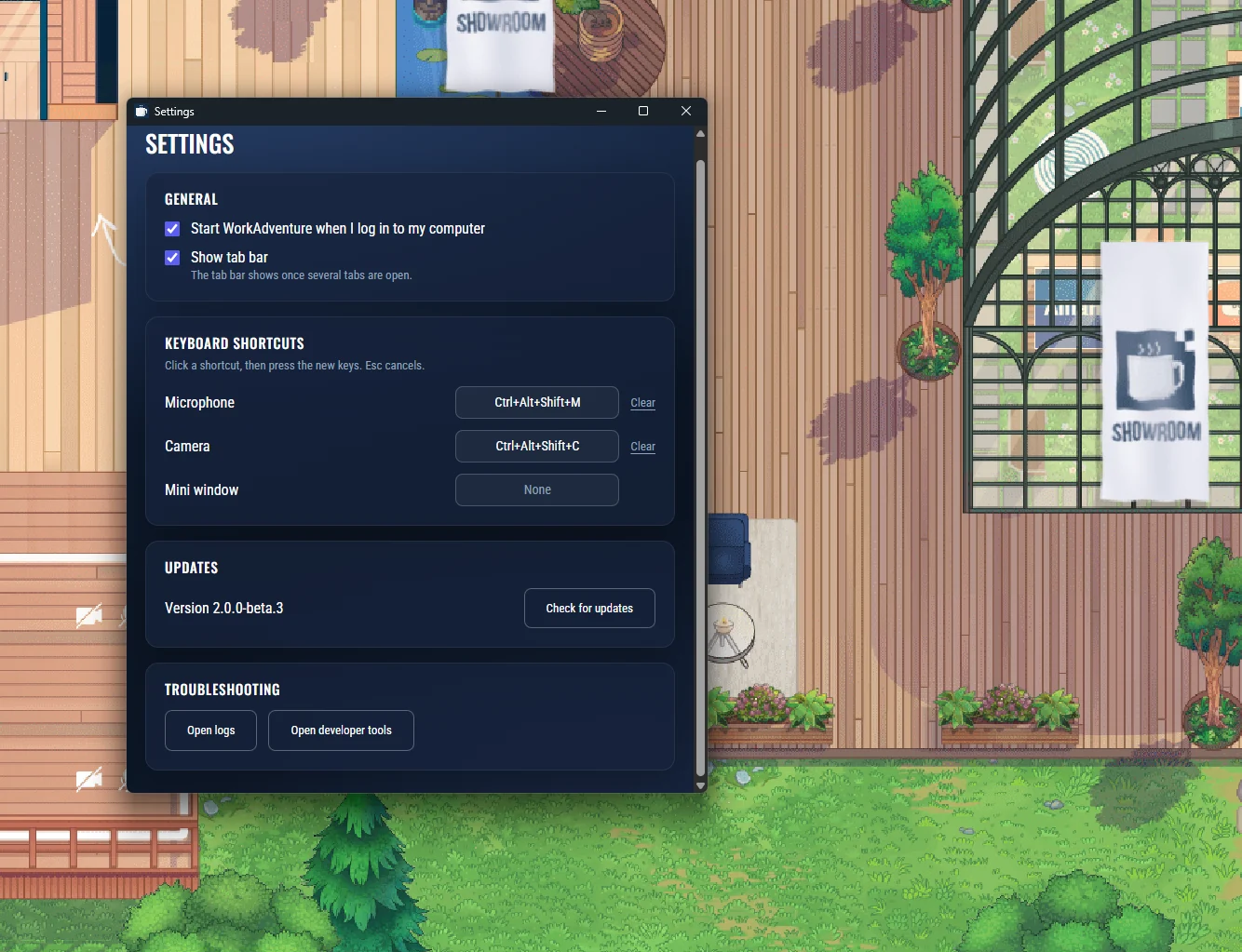
- Open WorkAdventure when your computer starts: your virtual office is always there. The app starts in the tray, and you show up as idle until you open it.
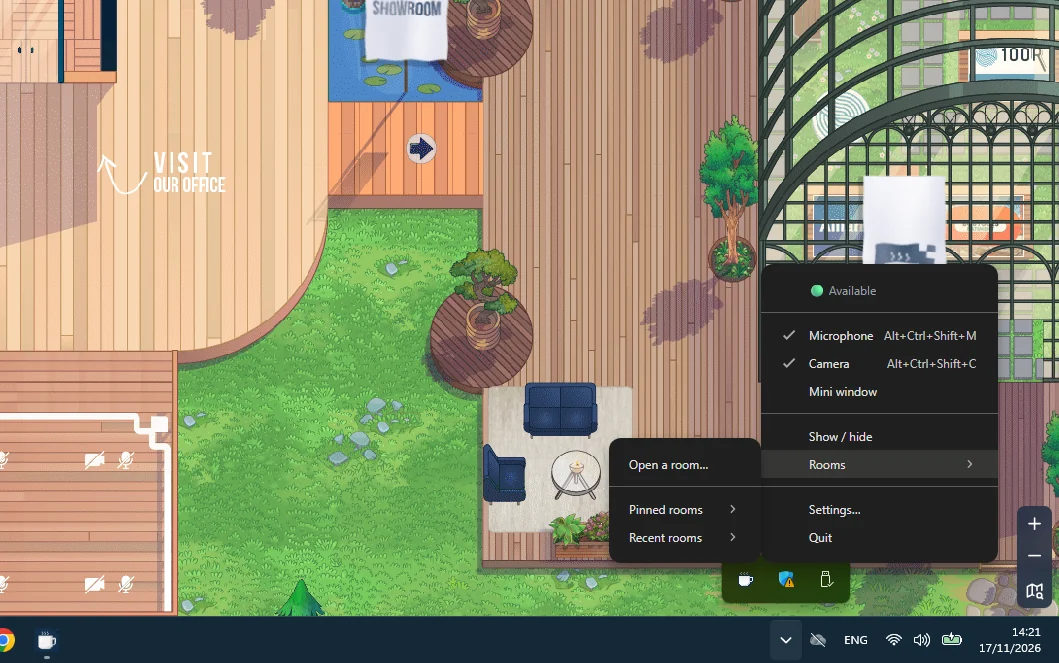
- The tray: your status, your microphone and camera, the mini window and your pinned and recent rooms, right from the system tray.
- Global keyboard shortcuts to mute your microphone or turn your camera off from any application.
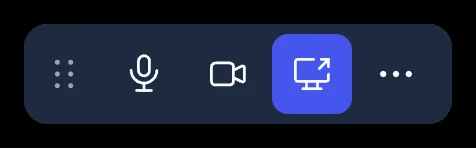
- A meeting bar while you share your screen, to control your microphone, your camera and the annotations without going back to WorkAdventure.
- Screen annotations, see below.
Signing in is simple: type your email, and the app lists the worlds you are a member of, with a thumbnail of each map.
We would love your feedback before calling it stable. Please tell us about any issue you run into!
Screen annotations
When someone shares their screen, the others can now draw on it: pen, lines, arrows and rectangles, in the color of their choice. The presenter decides whether the others may annotate.
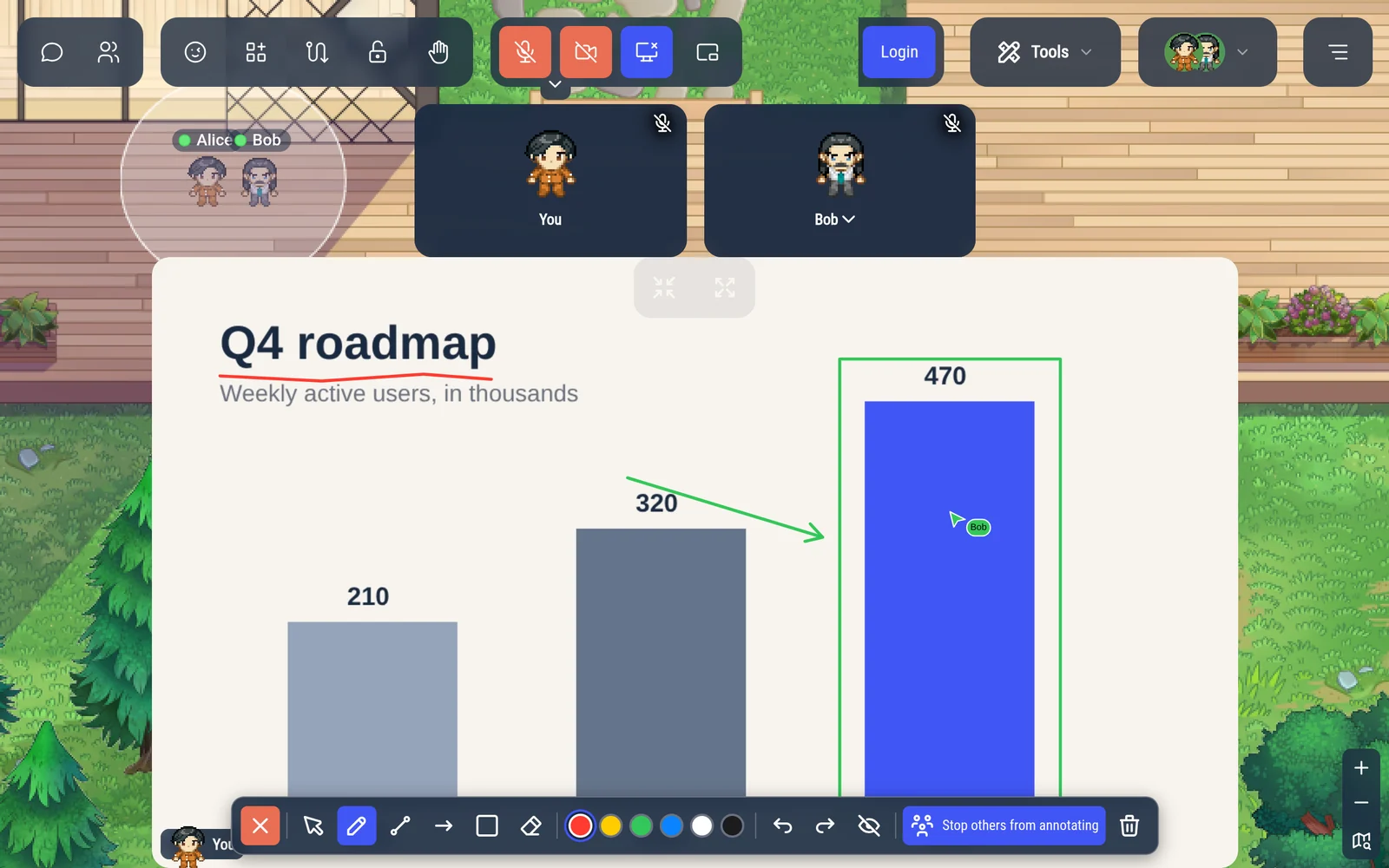
Annotations work in the browser too, on the shared screen displayed in WorkAdventure. But they are at their best when the presenter shares from the desktop app (on Windows or macOS): the annotations of the others then show directly on the presenter’s screen, over the application they share. The presenter also gets a laser pointer and a spotlight.
Away and idle
Better explanations of away mode
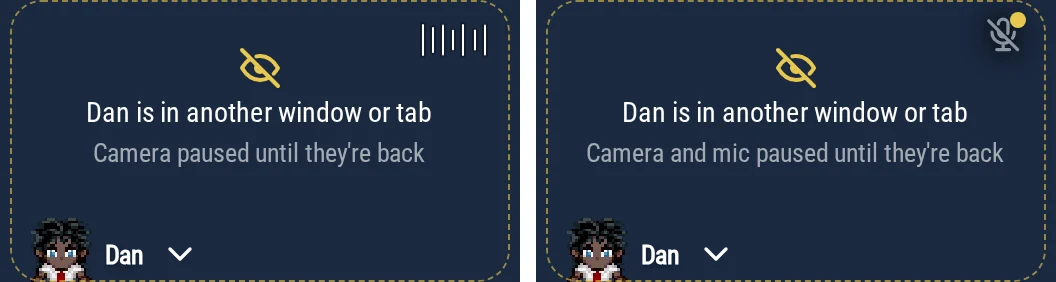
When WorkAdventure is not in front (you are in another tab or another application), you are in “away” mode, and your camera and microphone may be paused, depending on your privacy settings. That is great for privacy, but it could be confusing for the people walking up to you. If they cannot see or hear you, is it because you turned your camera and microphone off, or because you are away? They now get an explanation:
- Visitors know why you don’t answer: your tile says “Alice is in another window or tab · Camera paused until they’re back”.
- You know what the others get: while away mode holds your camera or your microphone, your own tile says so (“You can be heard, but not seen”), with a button to turn them back on.
A new Idle status
Away mode works well when you just switched to another window. But what if you are not at your desk at all? The desktop app can now start with your computer, including when you open your laptop on a Sunday. And WorkAdventure can stay open in a tab for hours while nobody looks at it. With the default settings, your microphone stays on in away mode. You don’t want to be heard in those cases.
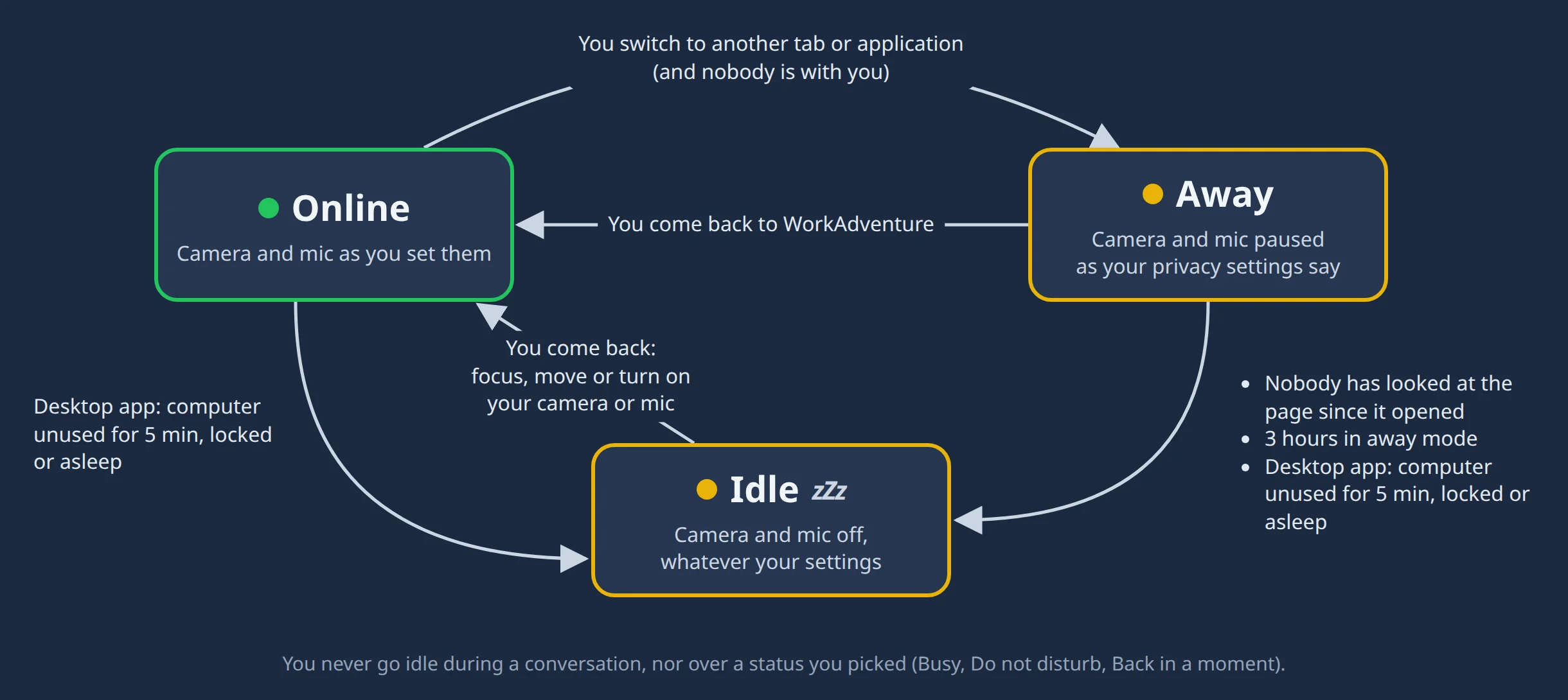
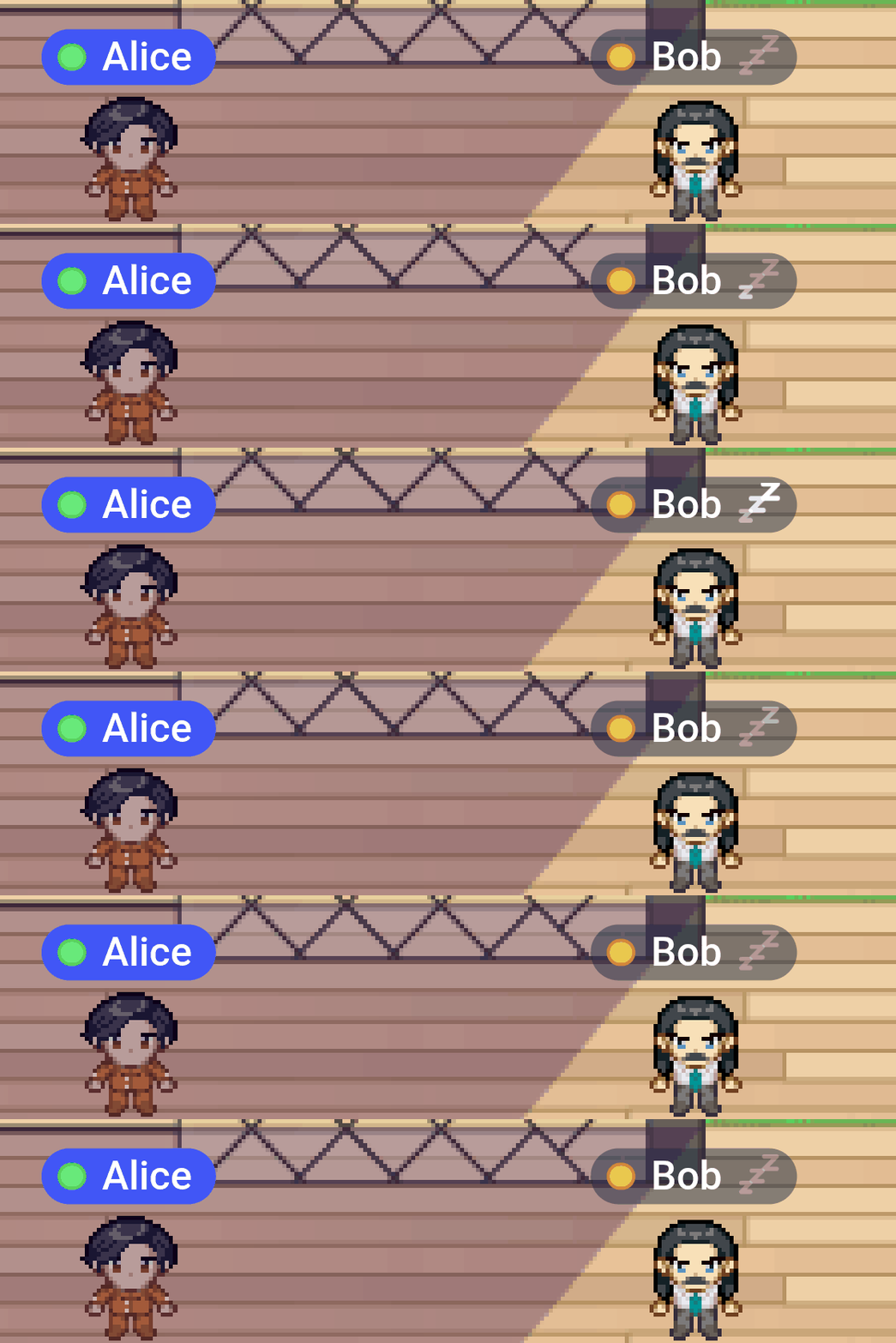
So we added a new Idle status. It is a “super-away” mode: your camera and your microphone are off, whatever your privacy settings say. You can still be joined, but nobody sees or hears you until you come back.
You go idle automatically:
- when the desktop app starts, or when WorkAdventure opens in a background tab: you stay idle until you open it;
- when you leave your computer: with the desktop app, you go idle when you have not touched your computer for 5 minutes, when you lock your screen or when your computer goes to sleep;
- after 3 hours in away mode, in the browser too.
You leave idle as soon as you come back to WorkAdventure: open it, move your Woka, or turn your camera or microphone on. Working in another application does not count, since you have not looked at WorkAdventure yet. And don’t worry: you never go idle in the middle of a conversation, nor when you picked a status yourself (Busy, Do not disturb, Back in a moment).
The others see an “Idle” status, “Alice has been inactive for a while” on your tile, and a small animated “zZz” next to your name on the map. They know you are probably not at your desk before they walk up to you.
NOTE
Using the Microsoft Teams integration? A Teams call or meeting now shows you as Do not disturb in WorkAdventure. It used to show you as Busy, and since busy people still join bubbles, someone walking up to you could be heard in your Teams call.
Your own camera backgrounds
Everyone in WorkAdventure can blur their camera background or replace it with an image. Until now, the images were the same for everybody: a library, a few offices, landscapes and gradients. World owners can now choose the images their world offers.
Open your world in the admin dashboard and click the Camera backgrounds tab. Upload your own images: your office, your brand colors, the banner of your event. You can add up to 20 of them, and drag them to choose their order. Below, turn off the built-in backgrounds you do not want, or hide them all.
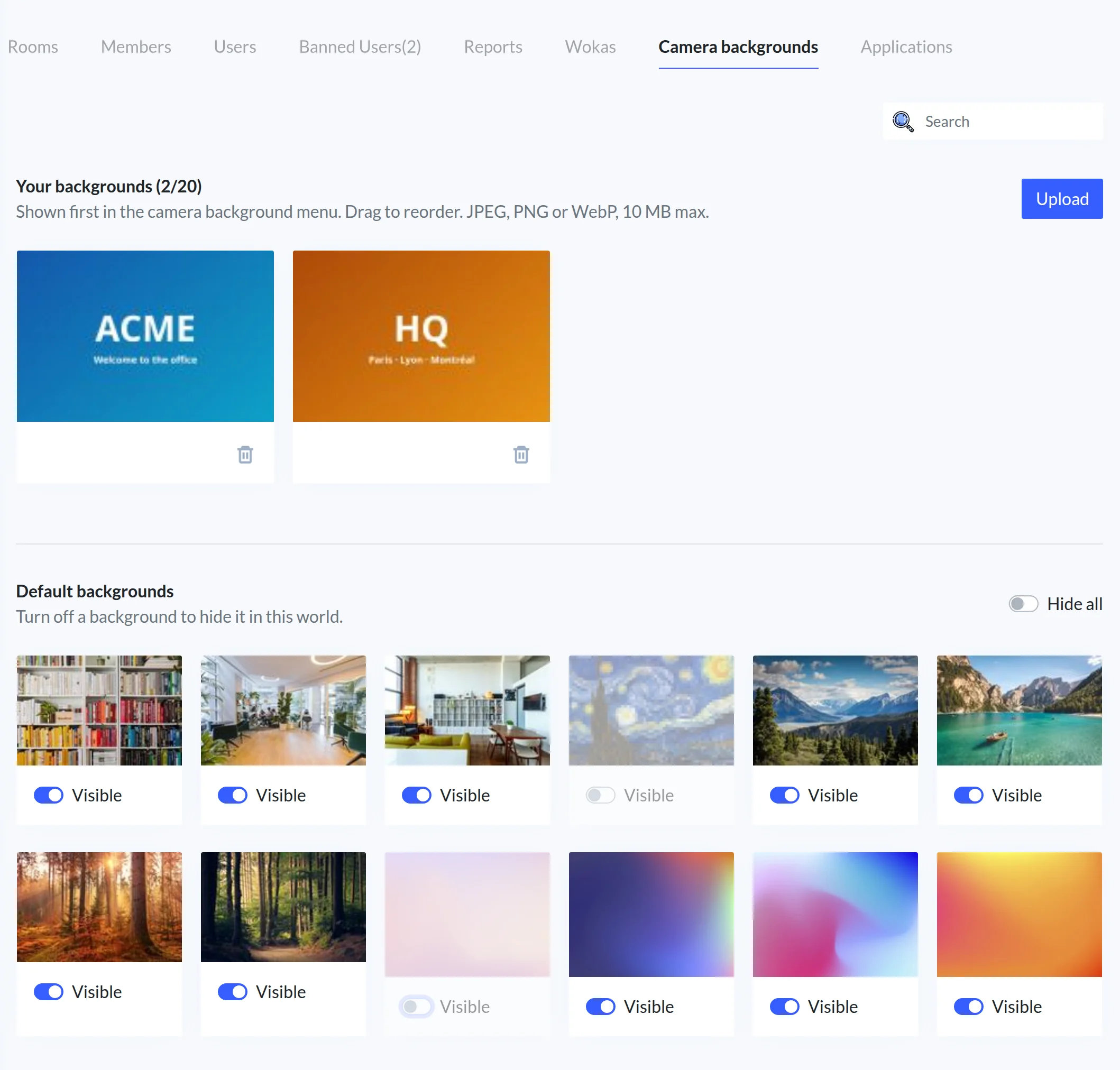
Changes apply right away to every room of the world, for members and visitors alike. Your images come first in the Camera background tab of everyone’s camera settings.
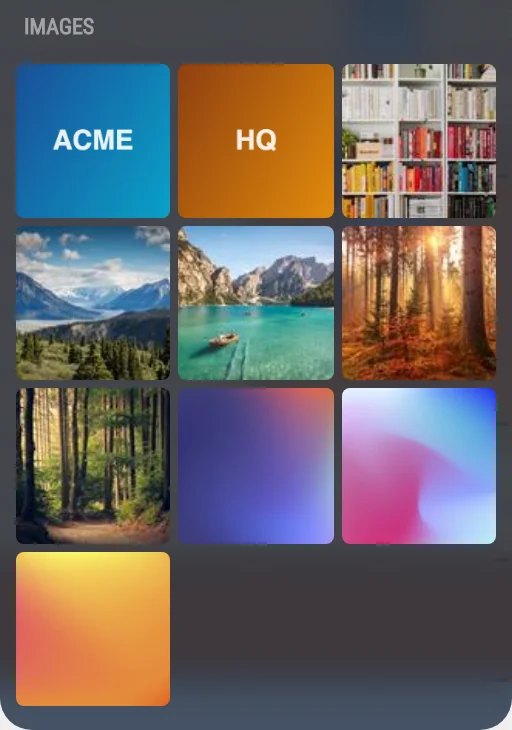
Uploading your own backgrounds is part of the Premium plan. Hiding the built-in ones is available on every plan. The details, including how to make an image that looks good behind everyone’s camera, are in Camera backgrounds in the documentation.
Rebind your keyboard shortcuts
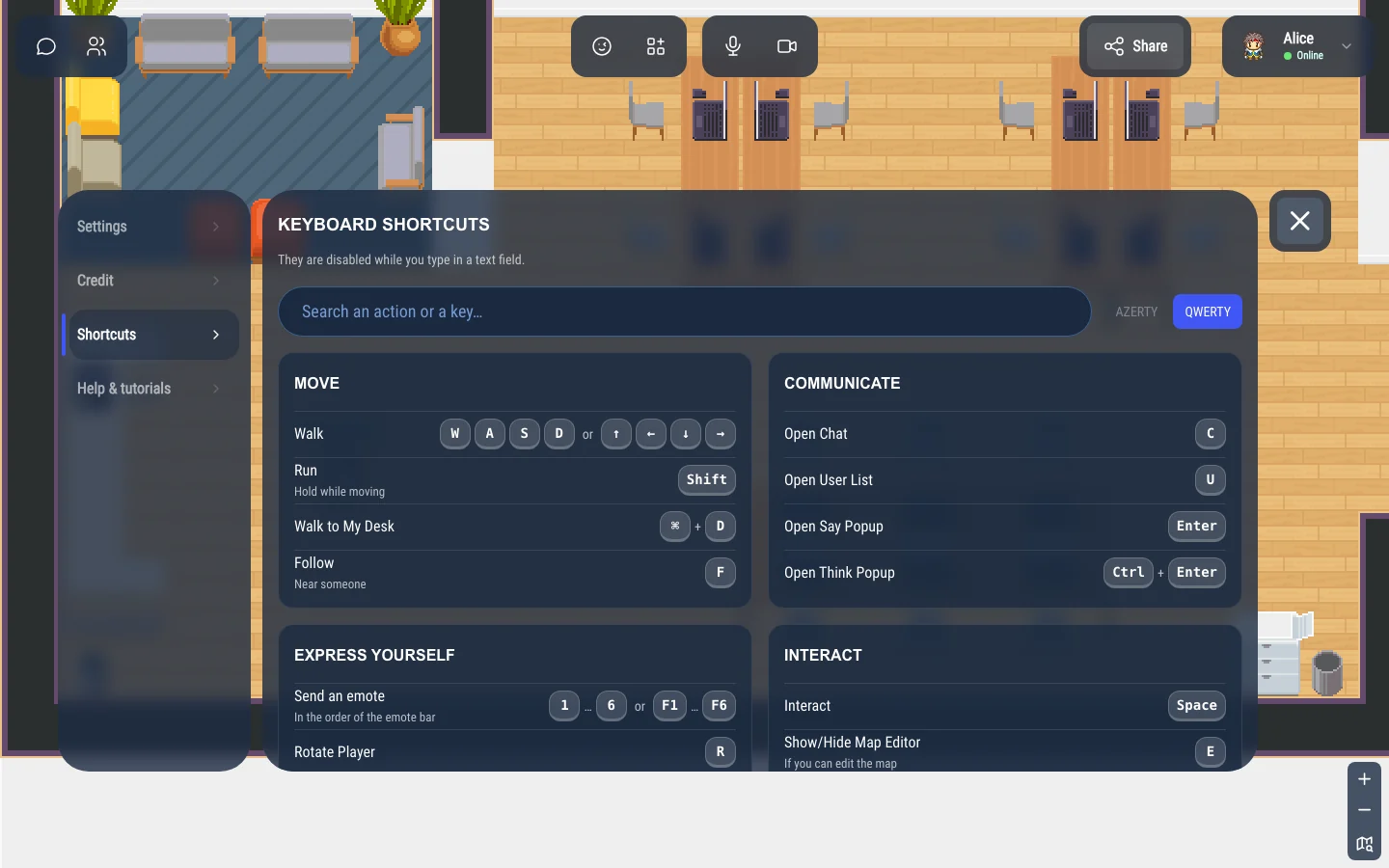
The keyboard shortcuts page of the menu has been redesigned: shortcuts are grouped by use, you can search them, and the page shows the keys of your own keyboard layout (AZERTY or QWERTY).
Even better, you can now change them: click Edit, click a shortcut and press the new keys. Walking to your desk, following someone, opening the chat or the user list, rotating your Woka and opening the map editor can all be rebound. If the keys are already taken, WorkAdventure tells you and offers to swap them.
A redesigned chat
The chat got its biggest overhaul since it moved to Matrix. We went through every screen, from the message bubbles to the room settings, to make it more pleasant to use, easier to understand and usable with the keyboard.
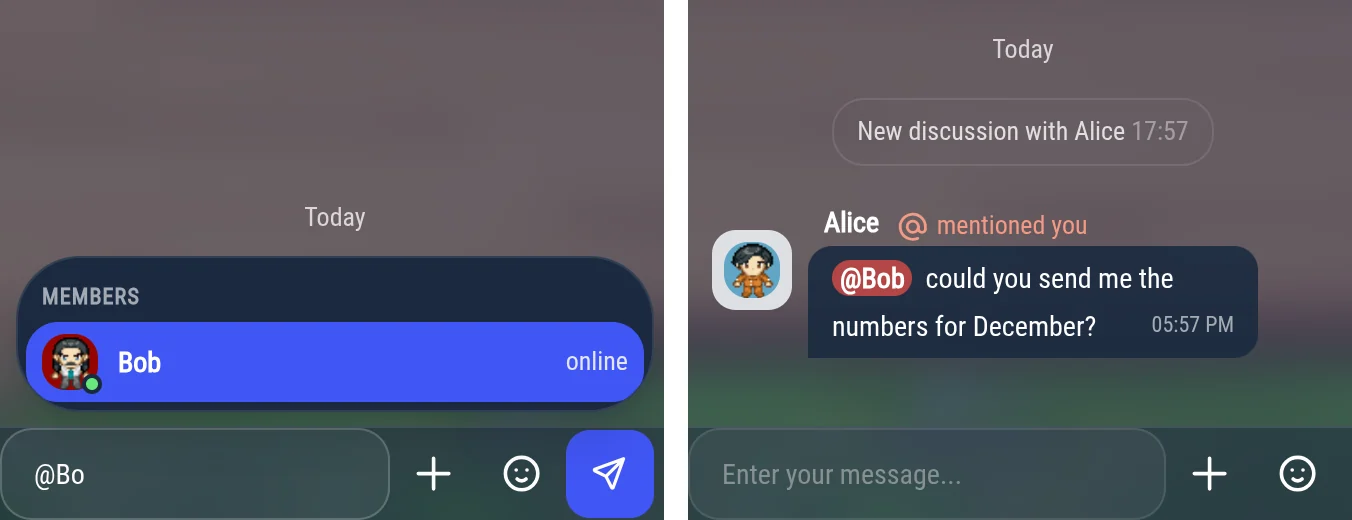
- @mentions: type
@to mention a member of the conversation, or@roomto notify everyone. A message that mentions you gets a color of its own, and mentions work both ways with Element. - Read receipts: ticks under your messages tell you when they are sent and read. In a group, your last message shows the faces of the people who have seen it.
- Who is typing shows at the bottom of the conversation, and you can hover a reaction to see who reacted.
- A more compact layout: the time sits inside the bubble, reactions sit on its edge, and names only show where they are needed. Titles, tables and lists no longer break the bubble.
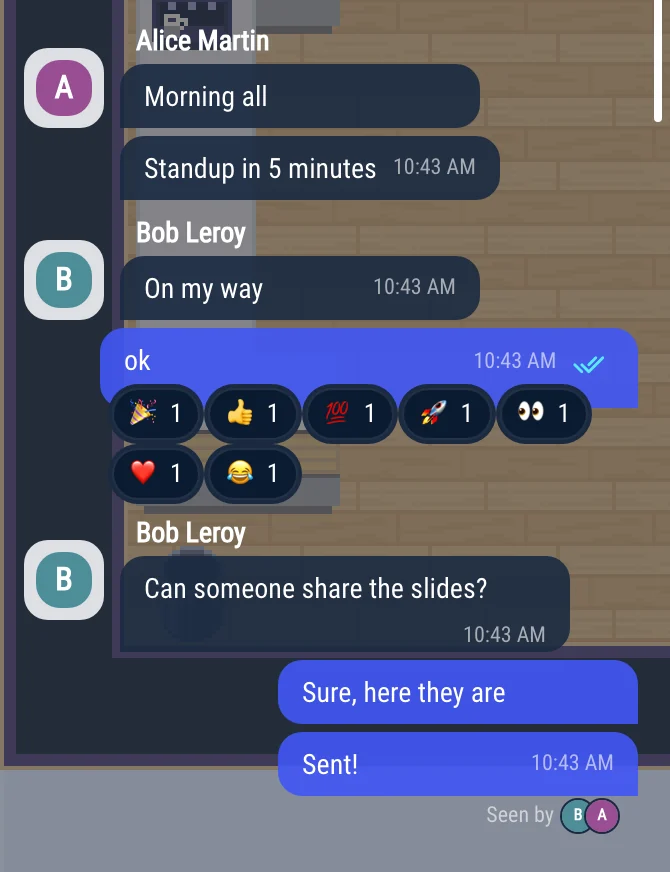
- Bubbles get replies and reactions, like Matrix rooms already had.
- No more popups: creating a room, managing its members and the chat settings now happen inside the chat panel, with room settings in plain words (who can join, who can write).
- Unread messages are easier to find: the back arrow shows how many are waiting in other conversations, and while you are reading the chat, mentions and direct messages show as a banner inside it instead of popping over the map.
- Nothing is lost silently: a file that fails to upload stays in the message bar, and a message that could not be sent gets a Retry button.
- Rooms open faster: the chat now loads the history 50 events at a time instead of 8. A busy room could take 18 round trips to the server before showing a single message.
- End-to-end encryption dialogs (recovery key, device verification) explain things in plain words. We also fixed a nasty bug where cancelling the creation of the recovery key installed it anyway, which could lock you out of your encrypted history.
- Keyboard users are much better served: popups behave as real dialogs, the focus is always visible, and every menu can be used with the keyboard.
Everything else
Announcements and going live
The “Global communication” window is replaced by two entries in the map menu: Send an announcement and Go live.
An announcement can now come with a place to join. Your colleagues get a Join button that walks their Woka there, even if the place is on another map of the world. A preview shows the exact card they will get.
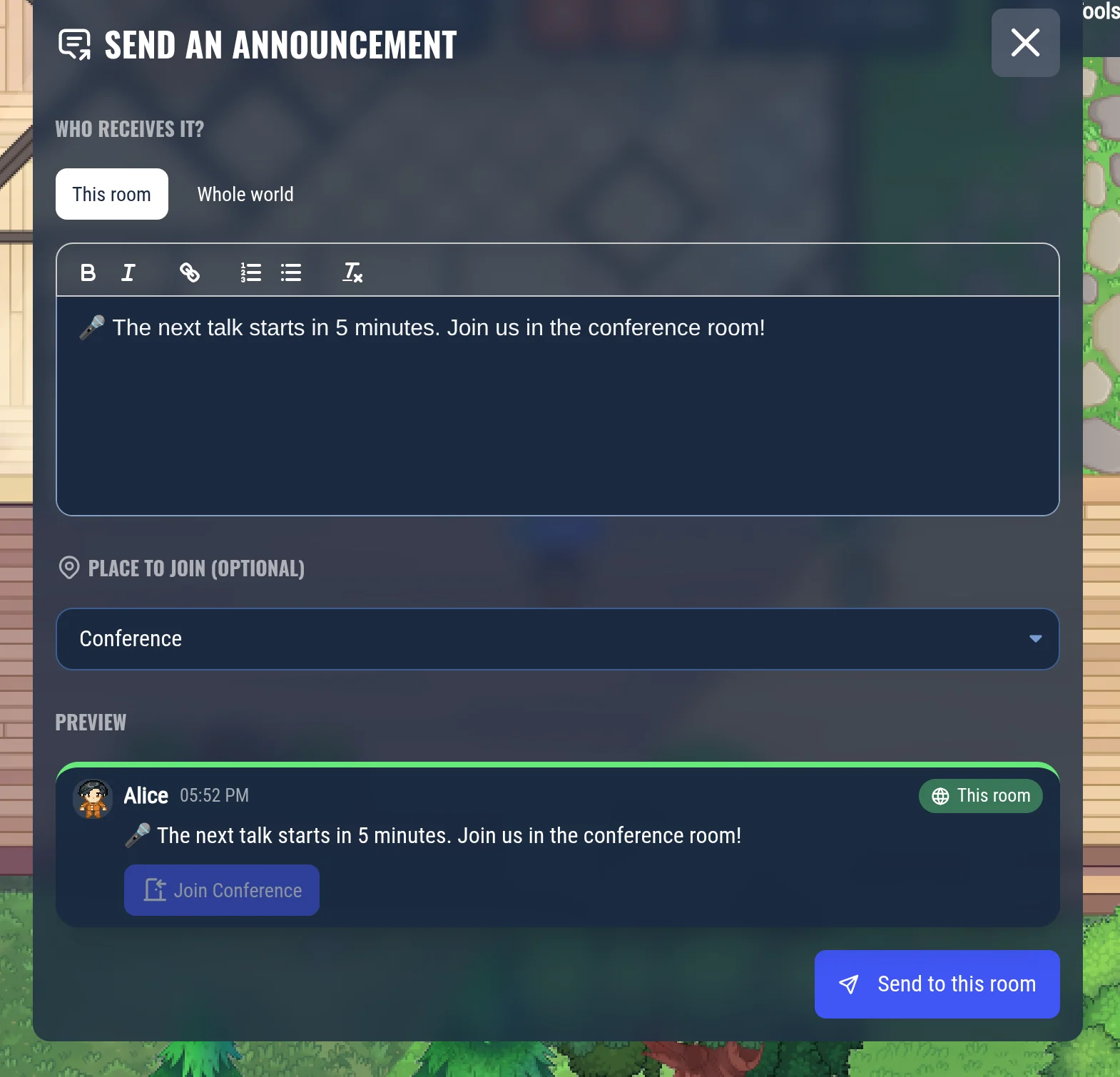
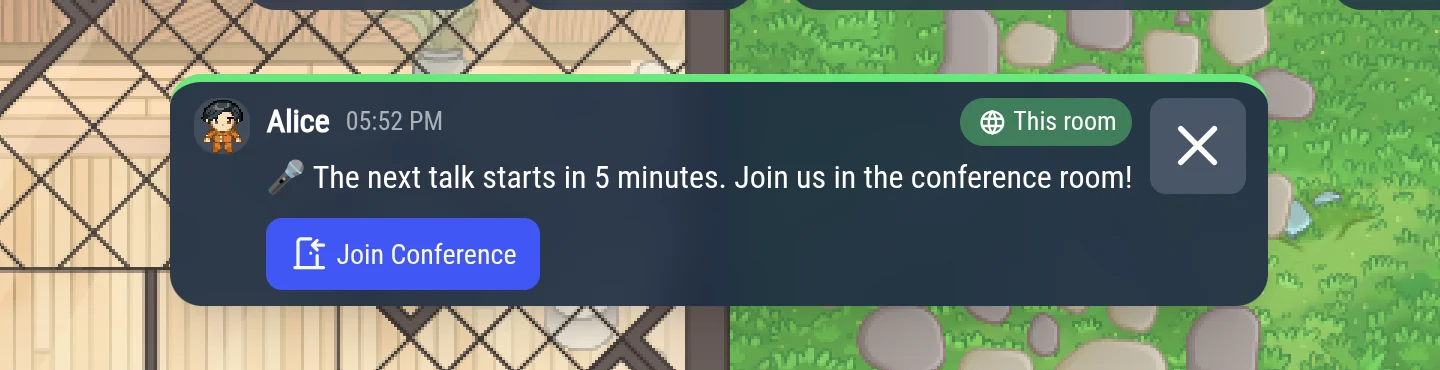
The megaphone is now called Go live, and a “Live · Stop” banner reminds you that you are on air.
NOTE
Global audio messages are gone: hardly anyone used them, since the megaphone lets you broadcast your camera and microphone, to the current room or to the whole world. To play an audio file to everyone, put an object on the map with the “Play audio file” property (see below).
Upload sounds in the map editor
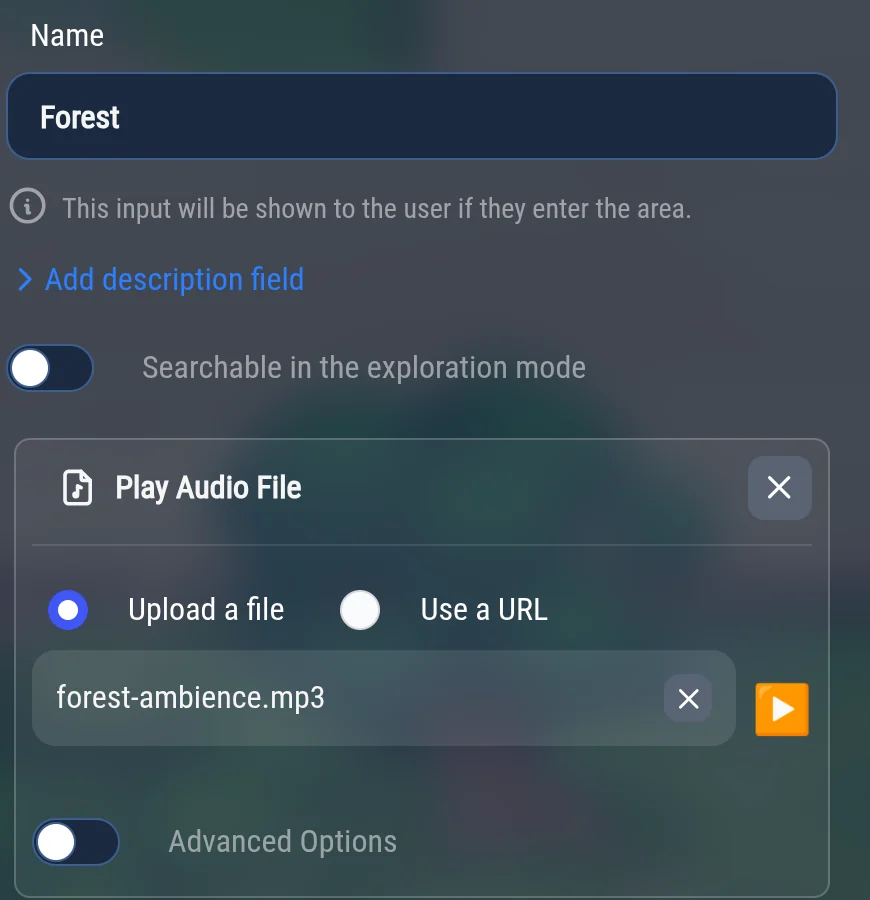
The “Play audio file” property of the map editor only accepted a URL, so you had to host your sounds somewhere else. You can now upload the sound file (mp3, ogg, wav, m4a or flac) directly from the editor. Combined with the sounds everyone can hear of 1.34, your gong is now just a few clicks away.
Sharper cameras in meetings
In LiveKit meetings (more than 4 people), nearly every camera using the VP9 codec was stuck at 360p: it did not get enough bandwidth to send its 720p version. This is fixed, and viewers get 720p again.
Meeting room moderators
The advanced options of a meeting room have a “Moderator tag for the meeting room” field. It was saved, but never used:
only users with the admin tag could moderate a meeting. Users carrying the tag of the room can now mute someone, turn
their video off, mute everyone and remove someone from the meeting. Kicking and banning from the world stay
admin-only.
Also new in the admin dashboard
A few more changes on the hosted version since 1.34:
- Analytics: filter the world activity by member tag, to see how a team or a group of guests used your world. The exports of the people lists now contain every row, not just the people shown on the page.
- Calendar: the agenda shows the week ahead instead of stopping at midnight, so you can see tomorrow’s 9 am meeting before logging off. Personal desks, megaphone zones and start areas can now be chosen as meeting places. The Google Calendar integration also got a round of fixes, and task due dates show on the right day.
- Zapier and n8n: your world can start Zapier and n8n workflows, with native triggers that set themselves up. Read Your WorkAdventure world can now start Zapier and n8n workflows.
Bug fixes
This release also fixes many bugs. A few notable ones:
- Audio after changing a device: plugging or unplugging a headset, waking up the computer or coming back to the tab could set your status to “Sound blocked” (and take you out of your bubble), or freeze the volume meters with a wrong “no microphone sound” warning. All fixed.
- A silent speaker in large meetings: in a LiveKit meeting, a speaker could become silent for everyone while their microphone still showed as on. Only a reload helped.
- Text messages in large bubbles: with more than 10 people in a bubble, the send button was disabled, even for text messages.
- Copied areas and entities in the map editor shared their properties with the original, so editing one changed the other.
- Jitsi: recent Jitsi Meet versions showed their “Join meeting” page, with an empty name, before entering the room.
- Deleting your account (admin dashboard) no longer deletes an organization you share with other people: the organization stays, with a new owner. You can also delete one of your organizations without deleting your account, and WorkAdventure lists what will be deleted before you confirm.
NOTE
Self-hosting WorkAdventure? Read the upgrade notes in the release notes on GitHub before upgrading.
Welcome to our new contributors
A warm welcome to @aditya-mitra, @GabrielSuassuna and @dafahan, who made their first contributions to WorkAdventure in this release. Special thanks to @dafahan for fixing the long-standing Jitsi issue above. Thank you!
Try it!
Grab the map and drag it, download the desktop app, and if you run a world, upload your company’s camera backgrounds. And tell us what you think of the new chat!